Getting Started
What Stynar helps you manage
Stynar is an end-to-end email outreach platform that helps teams build, run, and scale personalized campaigns. From importing leads and crafting AI-assisted templates to managing replies, auto-scheduling meetings, and monitoring sender health, every workflow is organized into dedicated workspaces built for efficient outreach.
The platform is built around eight core areas:
Dashboard
The Dashboard provides a real-time summary of email volume, campaign performance, lead growth, and sending trends. Use adjustable time ranges to monitor outreach progress and jump directly into recent campaign activity.
Campaigns
The Campaigns page is the central workspace for building and running outbound email outreach. Create multi-step sequences, configure delivery schedules, set follow-up rules, track performance metrics, and export reports — all from one place.
Leads
The Leads page centralizes your contact data. Import via CSV, or predefined CRM options, add leads manually, organize with group labels, filter by status or campaign, and perform bulk actions like labeling, exporting, or removing contacts at scale.
Inbox
The Inbox collects all incoming lead replies in one place. Read conversation threads, respond to messages, track engagement across campaigns, and surface leads that are ready for follow-up or meeting scheduling.
Meetings
The Meetings page tracks AI-scheduled meetings initiated from email conversations. When a lead expresses scheduling intent, the AI proposes available calendar slots from Google Calendar and auto-creates the meeting once a time is confirmed.
Templates
Build and manage reusable email templates for campaigns. Choose from a Visual builder, Plain Text editor, HTML code editor, or AI-assisted generation, and organize templates into categories for fast reuse across campaigns.
Prompts
The Prompts page lets you build a reusable AI prompt library for personalized email copy. Configure tone, length, and dynamic variables to generate consistent, targeted content tailored to each lead and campaign.
Email Accounts
The Email Accounts page manages your sending infrastructure. Connect Gmail or Outlook via OAuth, add SMTP accounts, verify sending domains with DNS records, and monitor Google Postmaster health to maintain deliverability and sender reputation.
Getting Started
Recommended setup path for a safe first campaign
Create an account
Sign up using Google, or email and password. Existing users can log in directly to access their workspace and pick up where they left off.
Complete onboarding
Fill in your profile details and complete the onboarding flow to personalize your workspace. This step configures default settings used across campaigns.
Configure email sending
Connect a Gmail or Outlook account via OAuth, add an SMTP mailbox, or verify a custom sending domain by adding the required DNS records. At least one active sender is required before a campaign can be launched.
Create a campaign
Start a new campaign by entering a name and selecting the target audience. The campaign builder walks you through each configuration step before activation.
Import leads
Upload a CSV file to import contacts in bulk, or use the Add Lead form to add them individually. Map CSV columns to lead fields, review imported records, and organize contacts with group labels before assigning them to a campaign.
Configure email content and template
Create or select an email template, write the subject line and message body, and optionally apply an AI prompt to personalize content. Assign one or more sender accounts to control which mailboxes deliver the campaign.
Configure follow-ups
Add follow-up email steps to the campaign sequence. Set wait intervals between each step, customize the subject and body for each follow-up, and configure stop conditions — such as stopping the sequence when a lead replies or books a meeting.
Schedule delivery
Set the campaign start date and time, configure daily sending limits per sender, and define the delivery window to control when emails go out each day.
Review campaign settings
Use the campaign review screen to verify the audience, email content, follow-up sequence, assigned senders, and scheduling settings. Resolve any flagged issues before activating.
Launch your campaign
Activate the campaign and monitor delivery progress, open rates, and lead engagement in real time through the Dashboard and campaign analytics page.
First send recommendation
Related guides
Getting Started
Understanding the Dashboard
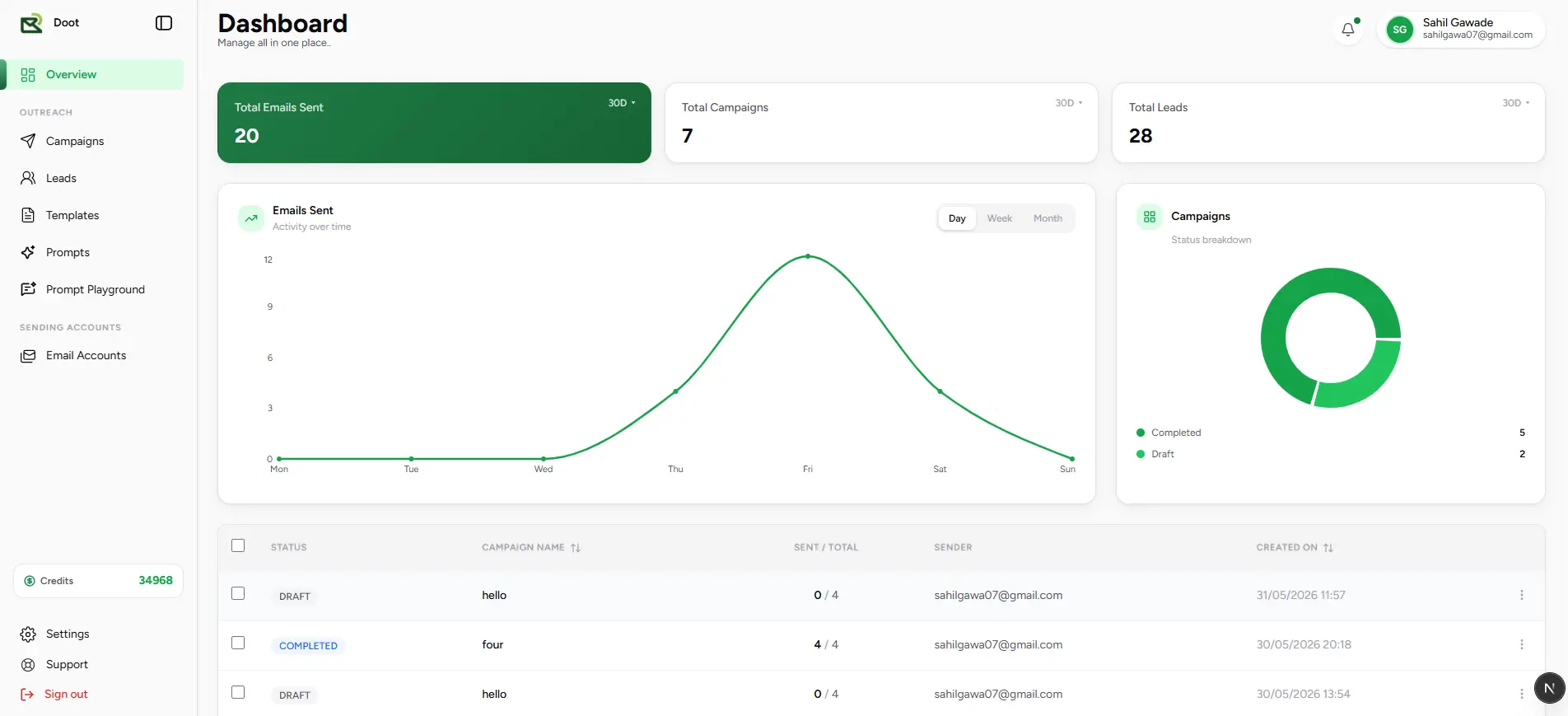
The Dashboard is your command center for outreach. At a glance, see how many emails are going out, how campaigns are performing, and how your lead base is growing — all filterable by date range so you can compare periods, spot trends, and act on what matters.
A real-time summary of email volume, campaign performance, lead growth, pipeline status, and recent campaign activity — all on one screen.
Volume
Total Emails Sent
The total number of emails delivered during the selected time range. Use this to gauge outreach velocity and spot drops in sending activity.
Campaigns
Total Campaigns
The number of campaigns created within the selected period. Track launch cadence and understand how actively your team is running outreach.
Audience
Total Leads
The total number of contacts available for outreach. Watch this grow as you import new leads and expand your audience over time.
Email Activity Trends
The Emails Sent chart plots your sending volume over time with daily, weekly, and monthly views. Use it to identify peak sending periods, detect unexpected drops, and validate that scheduled campaigns are executing as planned.
Campaign Status Distribution
A visual breakdown of your pipeline across Draft, Active, Paused, and Completed states. Use this to quickly assess whether campaigns are progressing, stalled, or ready to launch — without digging into individual campaign pages.
Recent Campaigns
A live table of your most recent campaigns showing status, assigned sender, email delivery progress, and creation date. Click any row to open the full campaign analytics view with per-lead delivery detail, open tracking, and performance metrics.
Dashboard as a starting point
Campaigns
Understanding the Campaigns
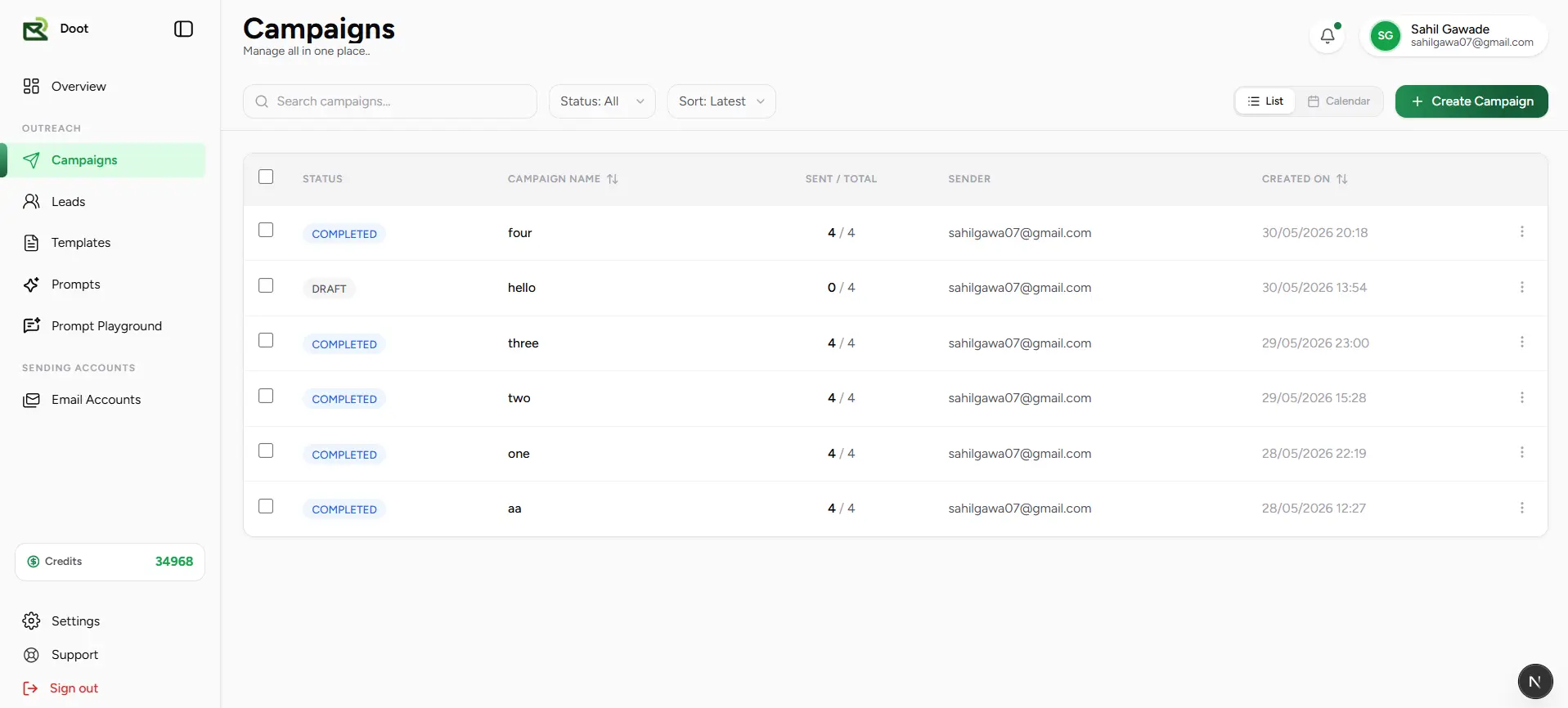
The Campaigns page is your central workspace for building, running, and optimizing email outreach. Manage every campaign across its full lifecycle — from first draft to final report — without switching between tools.
Campaign Creation
Build campaigns step-by-step with guided setup for audience, email content, follow-up sequences, scheduling, and delivery.
Search and Filters
Find any campaign instantly with full-text search, status-based filters, and flexible sorting across your entire campaign list.
Calendar View
Visualize your outreach schedule by date, track upcoming sends, and create new campaigns directly from the calendar.
Performance Monitoring
Stay on top of delivery progress, engagement trends, and campaign health from a single, scannable overview.
Campaign Details
Dive into any campaign for a full breakdown of leads, email content, sender configuration, delivery status, and analytics.
Reports and Exports
Export campaign performance data for deeper analysis, stakeholder reporting, or integration with your existing workflows.
Campaign lifecycle
Campaigns
Create a New Campaign
Every outreach effort starts with a campaign. Give it a name, then work through the guided builder to define your audience, craft your email, configure follow-ups, and set your delivery schedule — all before going live.
The campaign builder breaks setup into focused, sequential steps so each piece of configuration is validated before you move on.
Steps to create a campaign
Follow the steps below to create a new campaign and move on to audience and delivery configuration.
Prerequisite: Configure a sender account
Navigate to Campaigns
Go to the Campaigns page from the main navigation to view and manage all your outreach campaigns.
Create a campaign
Click Create Campaign and enter a clear, descriptive name that makes this campaign easy to identify at a glance.
Review campaign details
Confirm the campaign name and basic settings before moving forward — you can always rename it later from the campaign details page.
Continue to lead setup
Click Next to advance to the Leads step, where you'll define your target audience and import or select contacts.
Campaigns
Import and Configure Leads
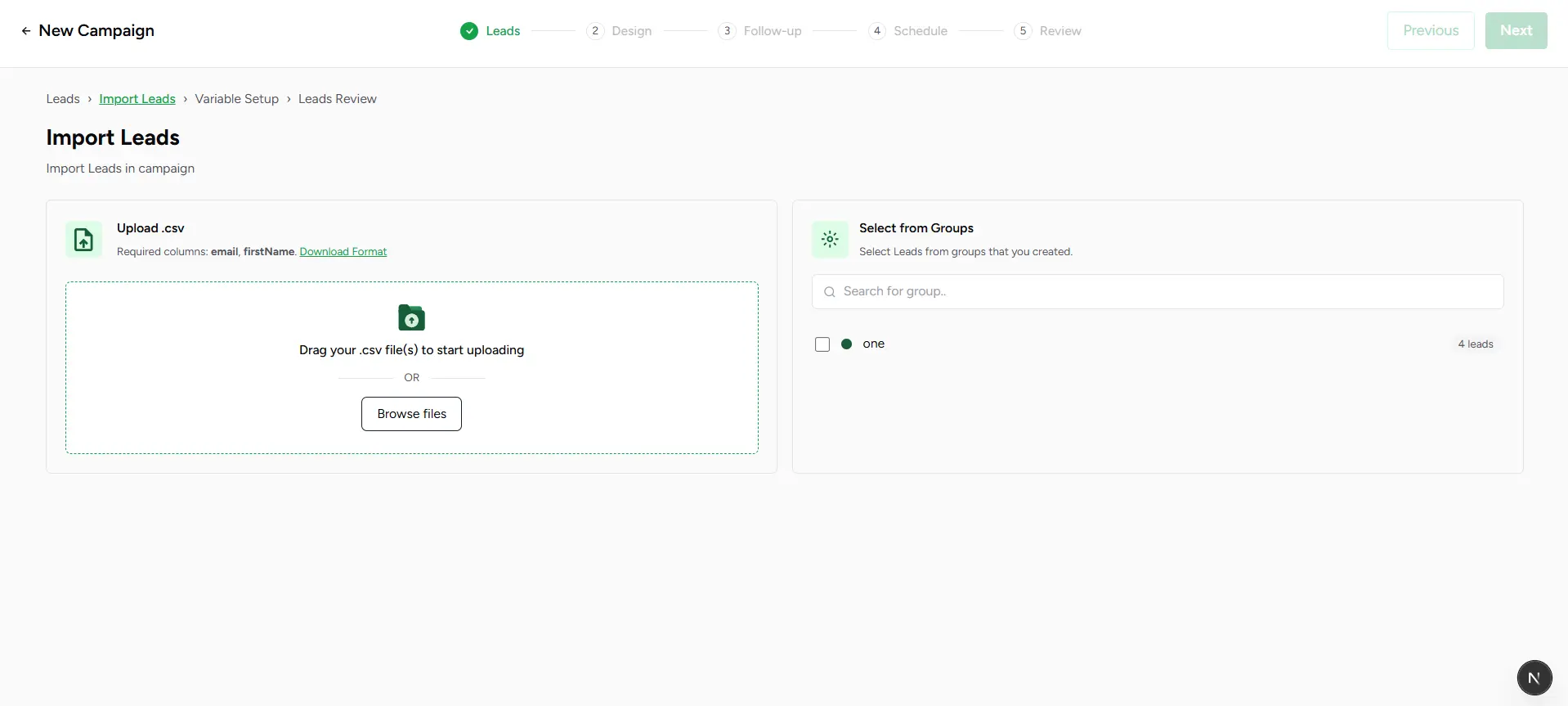
The Leads step is where you define who receives your campaign. Bring in contacts from any source, map their data to personalization variables, and verify the audience before moving on to email setup.
Add contacts from a CSV, CRM, or existing groups — then map variables and review your audience before continuing to email setup.
Leads setup workflow
Add leads
Add your audience by uploading a CSV file, connecting a CRM integration, or selecting one or more existing lead groups from your workspace. Once the audience is defined, click Next to continue.
Map lead variables
Match each data column to the correct lead field — First Name, Last Name, Email, Company, and any custom variables — so personalization renders accurately for every recipient.
Review imported leads
Check the imported contact list, correct any lead details as needed, and resolve validation errors before moving to email configuration.
Required lead fields
Next step
Campaigns
Configure Email Content and Delivery
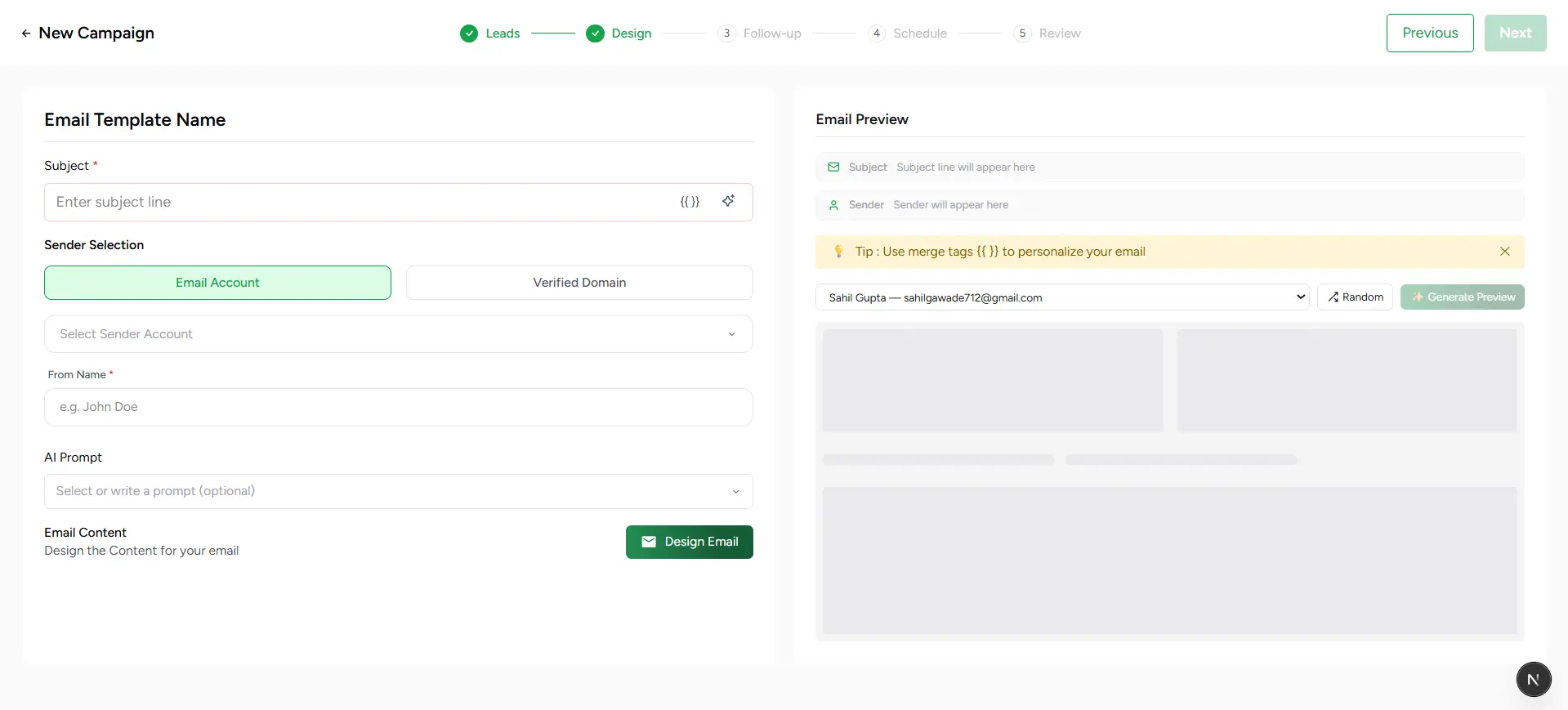
The Design step is where your campaign gets its voice. Write a compelling subject line, choose the sender accounts that will deliver it, pick an AI model for personalized content generation, apply a prompt, and finalize the email template — all before moving on to scheduling.
Set the subject, assign senders, select your AI model and prompt, and design the email template — all from one focused configuration step.
Email configuration workflow
Configure email subject
Write your subject line manually or use AI to generate options. Include merge tags like {{first_name}} or {{company}} to create dynamic, personalized subject lines for each recipient.
Select sender accounts
Choose one or more connected Gmail, Outlook, or SMTP accounts — or a verified sending domain — to control which mailboxes deliver the campaign.
Select an AI model (Optional)
Choose the AI model to use for personalizing email content. OpenAI GPT-4o Mini is selected by default for its speed and quality, but you can switch to other supported models such as Claude for different generation styles. Credits are charged per AI-personalized email sent.
Choose an AI prompt (Optional)
Select a saved prompt from your library or write a custom one to guide how the AI personalizes each email based on lead data and campaign goals.
Design the email template
Build a new template using the Visual Builder, Plain Text Editor, or HTML Code Editor, or pick an existing template from your library to reuse across campaigns.
Continue to follow-up setup
Once the email content and template look right, click Next to move on to the Follow-up step and configure automated sequences.
Preview before sending
Best practice
Campaigns
Follow-up Sequence Builder
The Follow-up Sequence Builder turns a single email into a complete, multi-step outreach journey. Design automated sequences on a visual canvas — add follow-up steps, set delays between each touchpoint, branch on recipient behavior, and personalize every message with AI — all without writing a line of code.
Build multi-step follow-up sequences on a visual canvas. Add email actions, configure delays, set behavioral conditions, and personalize each step with AI.
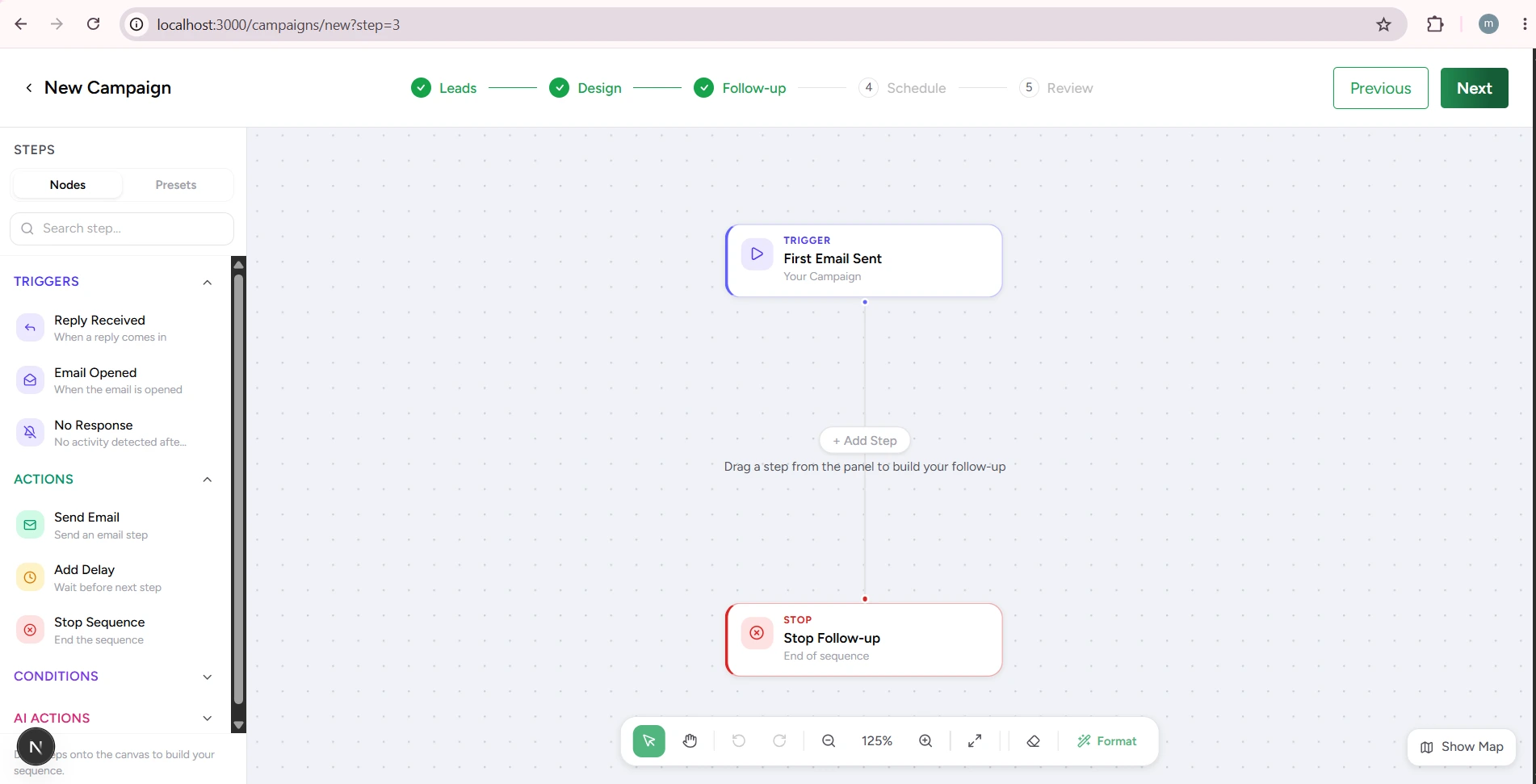
Workflow components
Triggers
Workflows start automatically when the initial campaign delivery completes, or when a recipient event — such as an open, click, or reply — is detected. Triggers give you precise control over when the follow-up sequence begins.
Actions
Send follow-up emails at any step in the sequence. Each Action node has its own subject line, message body, sender configuration, and optional AI prompt — so every touchpoint can be independently crafted.
Conditions
Branch the sequence based on how recipients engage. Condition nodes split into Yes and No paths — for example, route leads who opened but didn't reply down a different path than those who didn't open at all.
AI Actions
Insert AI nodes to generate or rewrite message content dynamically at any point in the sequence. Combine AI actions with saved prompts to produce personalized, context-aware follow-ups at scale.
Building a follow-up sequence
Open the Follow-up step
After completing the Design step, move to the Follow-up stage in the campaign builder. The canvas opens with a starting trigger node already in place — ready for you to extend.
Add follow-up email steps
Click Add Step or drag an Action node onto the canvas to insert a follow-up email. Repeat to create as many steps as your sequence requires — each with its own independent email configuration.
Set delays between steps
Place a Delay node between each email action to control how long the sequence waits before the next follow-up is sent. Delays can be configured in hours or days to match your outreach cadence.
Customize content for each step
Open each Action node to write a distinct subject line, message body, and optional AI prompt. Tailoring the content of each follow-up — rather than resending the same email — significantly improves reply rates.
Add conditions (Optional)
Insert Condition nodes to branch the sequence based on recipient behavior. Define rules such as 'opened the previous email' or 'clicked a link' to route leads into different follow-up paths based on their engagement.
Review the sequence flow
Use Fit to View to see the full sequence at once. Trace every branch from start to finish and confirm that all paths lead to a defined next step or a clear end — with no dead ends left open.
Save and continue to scheduling
Save the follow-up configuration to attach the sequence to the campaign. Click Next to advance to the Scheduling step, where you'll define the campaign start date, delivery window, and daily sending limits.
Canvas controls
| Field | What it means |
|---|---|
| Select / Pan | Click a node to select and edit it, or click and drag on an empty area to pan across the canvas. |
| Undo & Redo | Step backward or forward through your edit history to recover from accidental changes at any point. |
| Zoom Controls | Zoom in to focus on individual node configuration, or zoom out to review the full sequence structure. |
| Fit to View | Instantly center and scale the canvas to show all nodes in the current workflow — useful for long sequences. |
| Auto Layout | Automatically rearrange nodes into a clean, readable structure. Apply after adding branches or reorganizing steps. |
| Portrait / Landscape | Switch canvas orientation to better match the shape of your workflow — portrait for linear sequences, landscape for wide branching structures. |
Conditional branches
Preset workflows
Undo history protection
Best practices
Start with a simple sequence
Begin with a 2–3 step linear follow-up before adding conditional branches. Simple sequences are faster to configure, easier to test, and simpler to optimize based on results.
Use conditions selectively
Only branch when engagement data meaningfully changes what a lead should receive. Over-branching creates maintenance complexity without a proportional gain in performance.
Validate every branch
Before saving, trace both the Yes and No path of every Condition node to confirm each one leads to a defined next step or a deliberate endpoint — never a dead end.
Apply auto layout regularly
After adding nodes or restructuring paths, use Auto Layout to keep the canvas organized. A clean canvas makes it easier to spot gaps and review the sequence flow.
Use presets as a starting point
Load a pre-built template to skip manual setup for common patterns, then customize the steps, delays, and conditions to match your specific campaign goals.
Next step
Campaigns
Schedule Campaign Delivery
The Schedule step puts you in full control of when and how your campaign reaches recipients. Pick a delivery method that fits your audience size, outreach urgency, and sender reputation — then fine-tune the cadence before going live.
Choose a delivery strategy, set a start date and time, configure daily sending limits, and restrict delivery to specific days of the week.
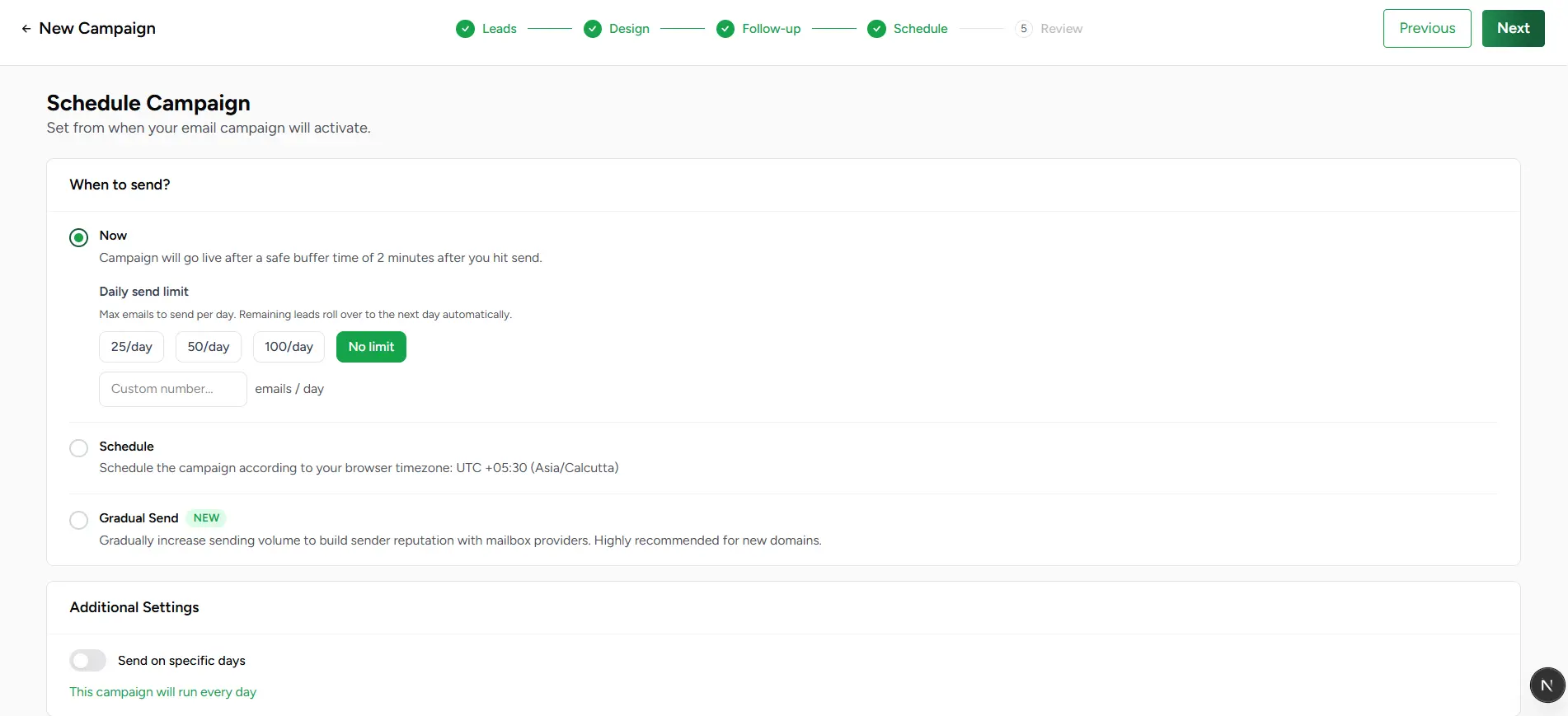
Choose a sending method
Three delivery methods are available — each designed for a different outreach scenario. Only one method can be active per campaign, so choose the one that best matches your goals.
Send Now
Start delivery immediately after a short safety buffer. Best for time-sensitive outreach where you want emails to go out as soon as possible. An optional daily limit can be set to control how many emails are sent per day.
Schedule
Pick a specific start date and time — based on your browser timezone — for the campaign to activate automatically. Optionally set an end date to stop delivery once a deadline is reached.
Gradual Sending
Start with a low daily volume and ramp up incrementally over time. Ideal for new sending domains or accounts where building sender reputation gradually is critical for inbox placement and deliverability.
Additional Settings
Limit delivery to specific days of the week — for example, weekdays only — to align campaign activity with when your audience is most likely to engage.
Continue to Review
Once scheduling is configured, click Next to advance to the Review step for a final check before the campaign goes live.
Daily sending limits
Recommended sending strategy
Campaigns
Review and Launch Campaign
The Review step is your final checkpoint before the campaign goes live. Every configuration decision — audience, email content, follow-up sequence, sender setup, and delivery schedule — is surfaced in one place so you can launch with confidence.
A consolidated view of your entire campaign configuration — review audience size, email settings, schedule, warnings, and preview the final email before activating.
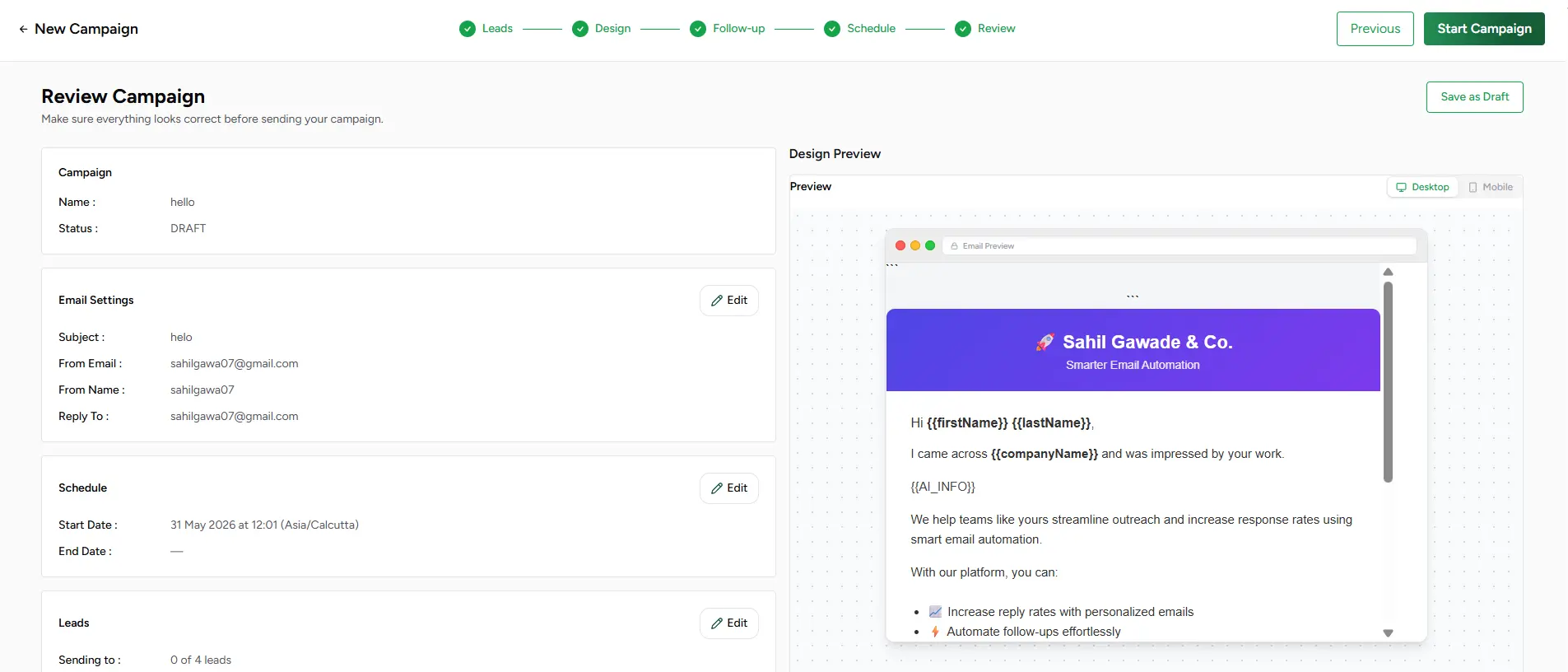
Review workflow
Review campaign details
Confirm the campaign name and check its current status. You can launch immediately from this screen or save it as a draft to revisit and activate later.
Validate email settings
Verify the sender account, display name, reply-to address, subject line, and email template to confirm every recipient will receive a correctly configured message.
Check scheduling preferences
Review the selected sending method, start date and time, optional end date, daily limits, and any day-of-week restrictions before activating the campaign.
Verify lead information
Check the total number of eligible recipients and review any leads flagged as skipped due to missing required fields. Resolve data issues now to maximize your deliverable audience.
Launch or save as draft
When everything looks right, click Launch to activate the campaign immediately. Not ready yet? Save as a draft to finalize later — all configuration is preserved.
Email preview
Campaign warnings
Ready to launch
🎉 Campaign launched successfully
Your campaign is now live. Emails will be delivered on the configured schedule and your follow-up sequence will engage leads automatically based on their behavior. Track delivery progress, open rates, and engagement metrics in real time from the Dashboard and campaign analytics page.
Inbox
Inbox
The Inbox is where your campaign conversations come to life. Every reply from a lead lands here — organized, classified, and ready to act on. Read full threads, identify warm prospects, respond directly, and let AI surface the conversations most worth your attention without manual triage.
All incoming lead replies across every campaign, organized in one place — with AI classifications, full thread history, and follow-up signals built in.
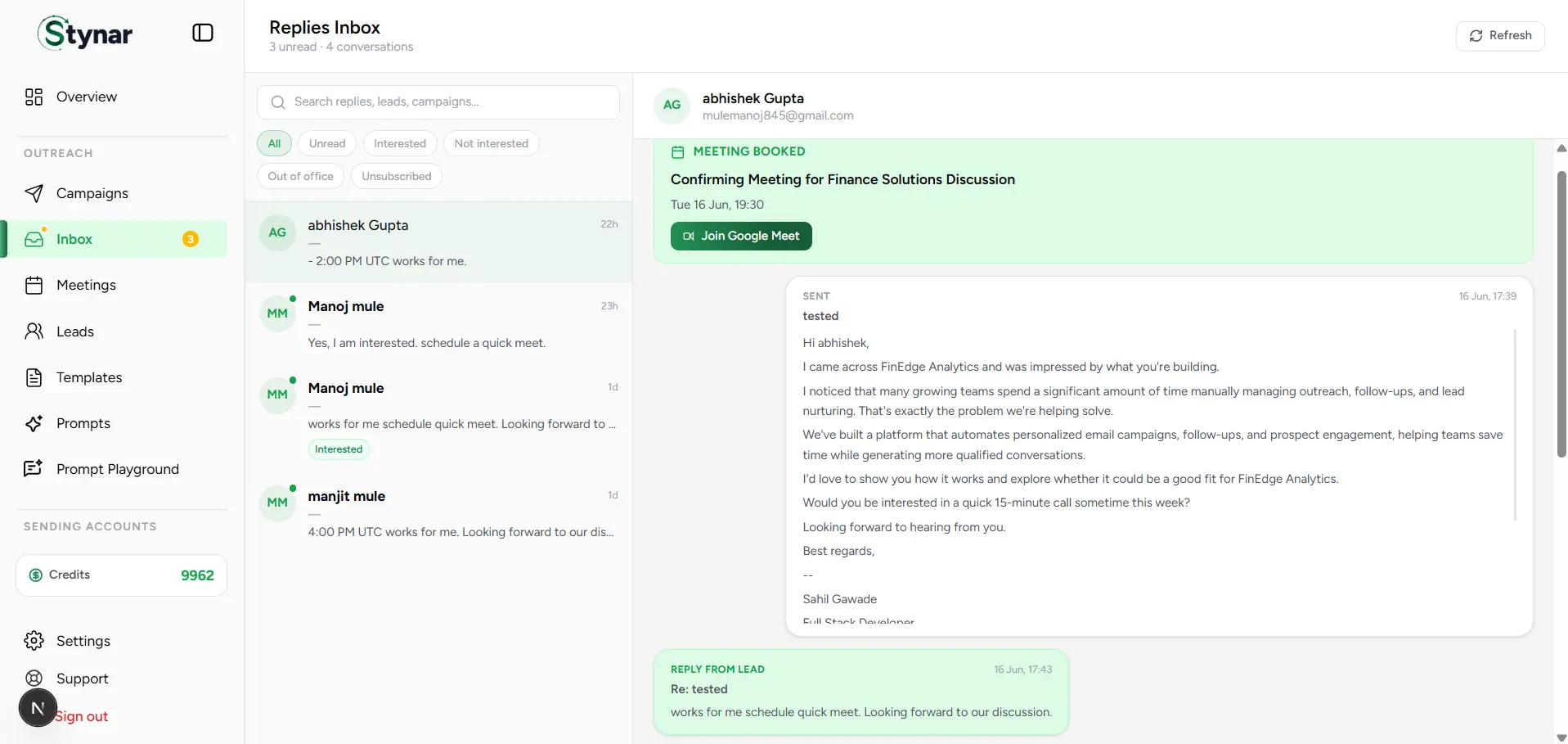
Centralized Conversations
All incoming replies across every campaign land in one unified inbox — no switching between tools or losing context mid-conversation.
Conversation Search
Find any lead, campaign, or reply instantly with full-text search across your entire conversation history.
Response Classification
AI automatically categorizes every reply — Interested, Not Interested, Out of Office — so you can filter to what matters most.
Thread View
Open any conversation to see the full back-and-forth history — every email sent and every reply received, in chronological order.
Unread Indicators
New replies appear with unread badges so you always know exactly what needs attention and what has already been reviewed.
Campaign Context
Every reply is linked to the campaign and sender that generated it, giving you full outreach context without any manual cross-referencing.
Where outreach becomes pipeline
Inbox
Conversation List
The conversation list gives you a live snapshot of every lead reply at a glance. Each row surfaces the key details — lead name, campaign, latest message preview, AI classification, and timestamp — so you can triage what needs immediate attention without opening every thread.
A live list of all incoming lead conversations with reply previews, timestamps, AI classification labels, and unread indicators — everything you need to prioritize at a glance.
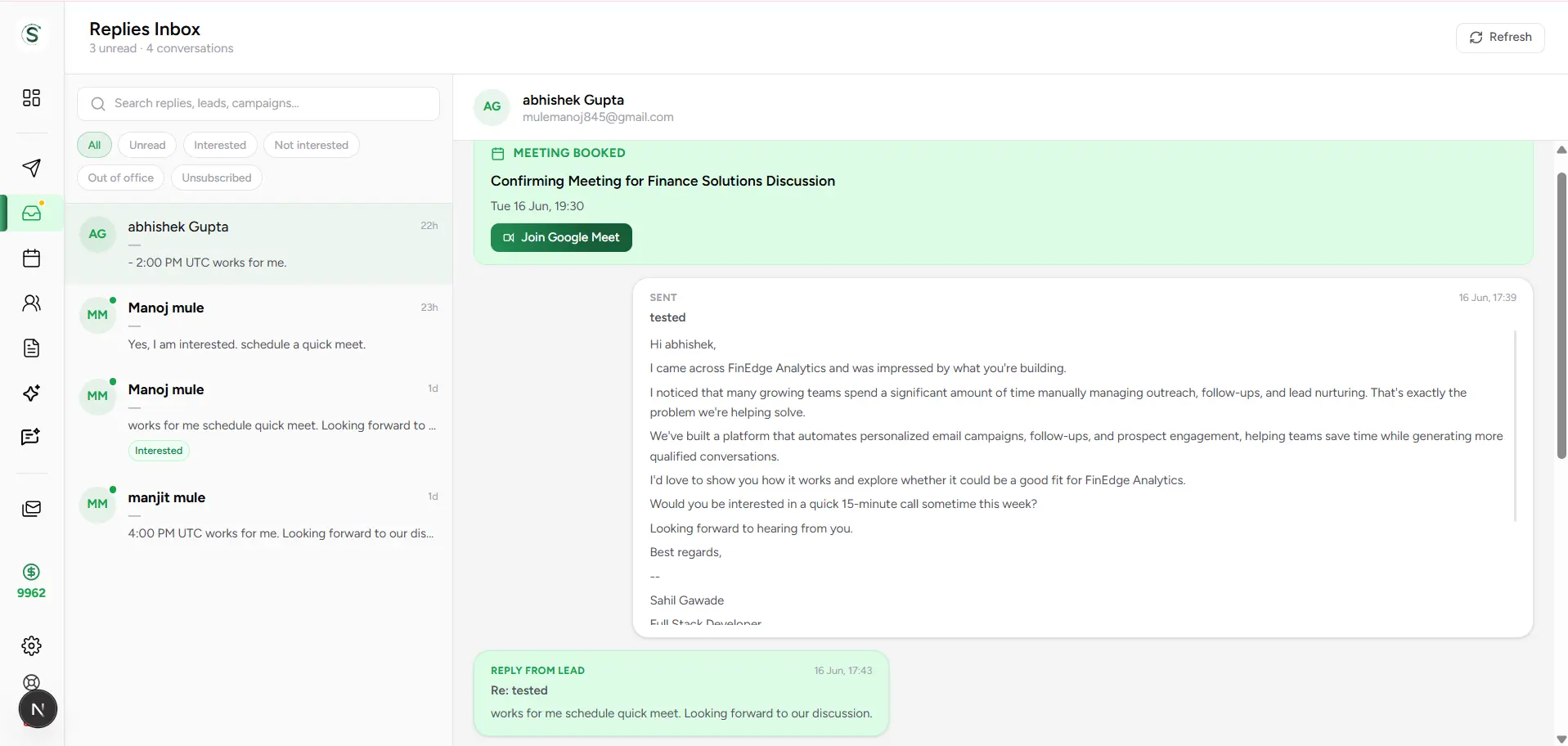
Conversation Information
| Field | What it means |
|---|---|
| Lead Name | The name of the lead who replied. Click the row to open the full conversation thread. |
| Lead Email | The email address the reply was received from — useful for identifying the contact at a glance. |
| Campaign Name | The outreach campaign that triggered this conversation, giving you immediate context for the reply. |
| Message Preview | A short excerpt of the most recent message so you can gauge the reply's tone and content before opening it. |
| Unread Indicator | A visual badge that marks conversations with new, unread messages — so nothing gets missed during a busy session. |
| Timestamp | The date and time of the most recent activity in the conversation, helping you prioritize recent replies. |
| Classification | The AI-assigned intent label for the reply — such as Interested, Not Interested, or Out of Office — displayed directly in the list. |
Inbox
Search and Filters
Cut through the noise and surface the conversations that matter. Search by lead name, email, or keyword, and use classification filters to instantly focus on warm prospects, unread replies, or any specific response type — without scrolling through everything.
Search across all conversations and filter by classification to quickly surface warm leads, unread replies, and specific response types.
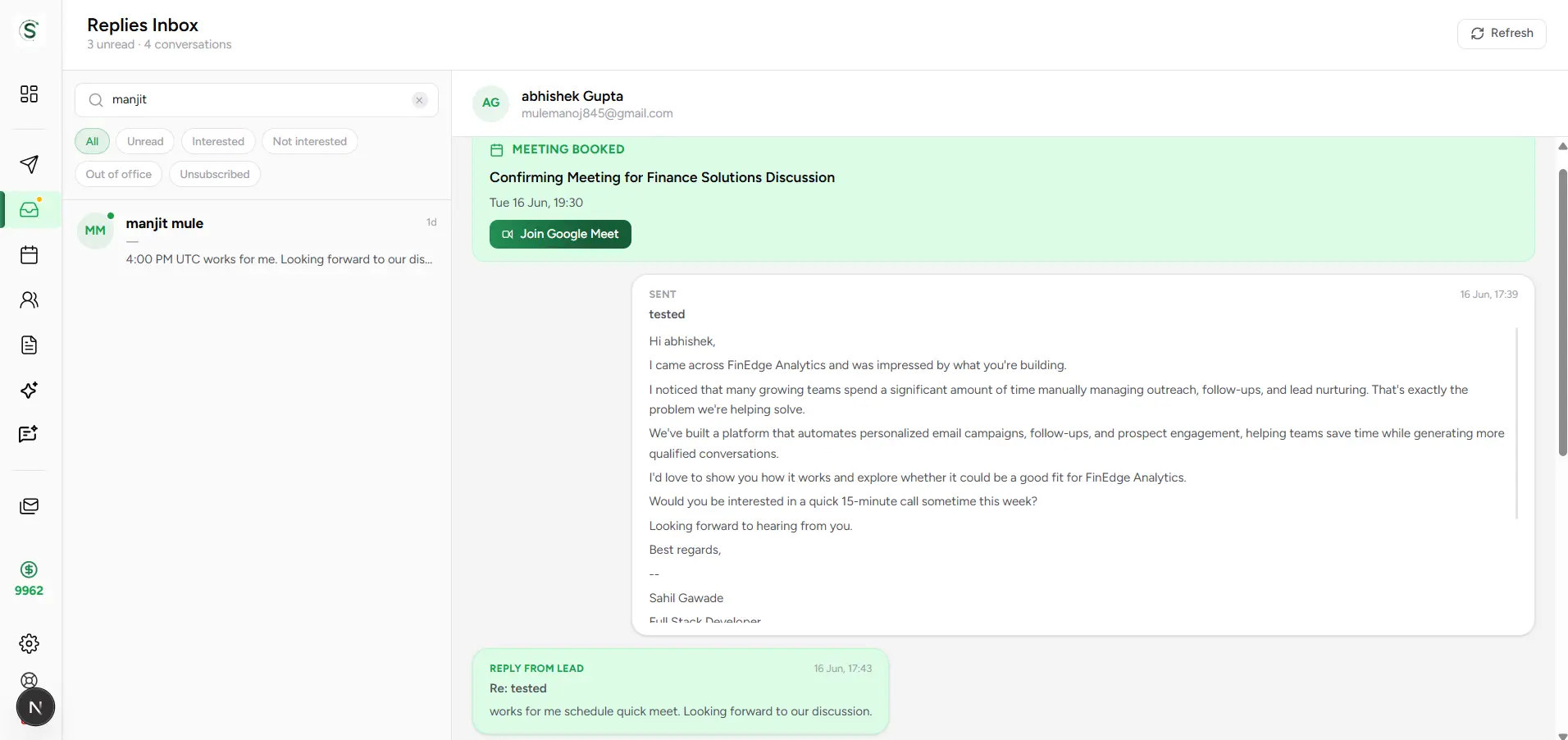
Available Filters
| Field | What it means |
|---|---|
| All | Shows every conversation in the inbox — a complete, unfiltered view of all lead replies across campaigns. |
| Unread | Shows only conversations with new, unread messages — the fastest way to catch up on recent activity without missing anything. |
| Interested | Filters to leads who expressed genuine interest in your offer or asked to learn more. These are your highest-priority conversations. |
| Not Interested | Filters to leads who declined or opted out — useful for confirming they are excluded from active follow-up sequences. |
| Out of Office | Shows automated absence or vacation replies. These leads may warrant a follow-up once they return. |
| Unsubscribed | Filters to leads who requested to stop receiving emails. These contacts are automatically excluded from future campaign sends. |
Start with what matters most
Inbox
Response Classification
Every incoming reply is automatically read and classified by AI — so you never have to manually sort through responses to find warm leads. Classification labels surface intent at a glance, drive smarter filtering, and help your team take the right next step for every conversation.
Every reply receives an AI-assigned classification label — visible directly in the conversation list and filterable from the inbox toolbar.
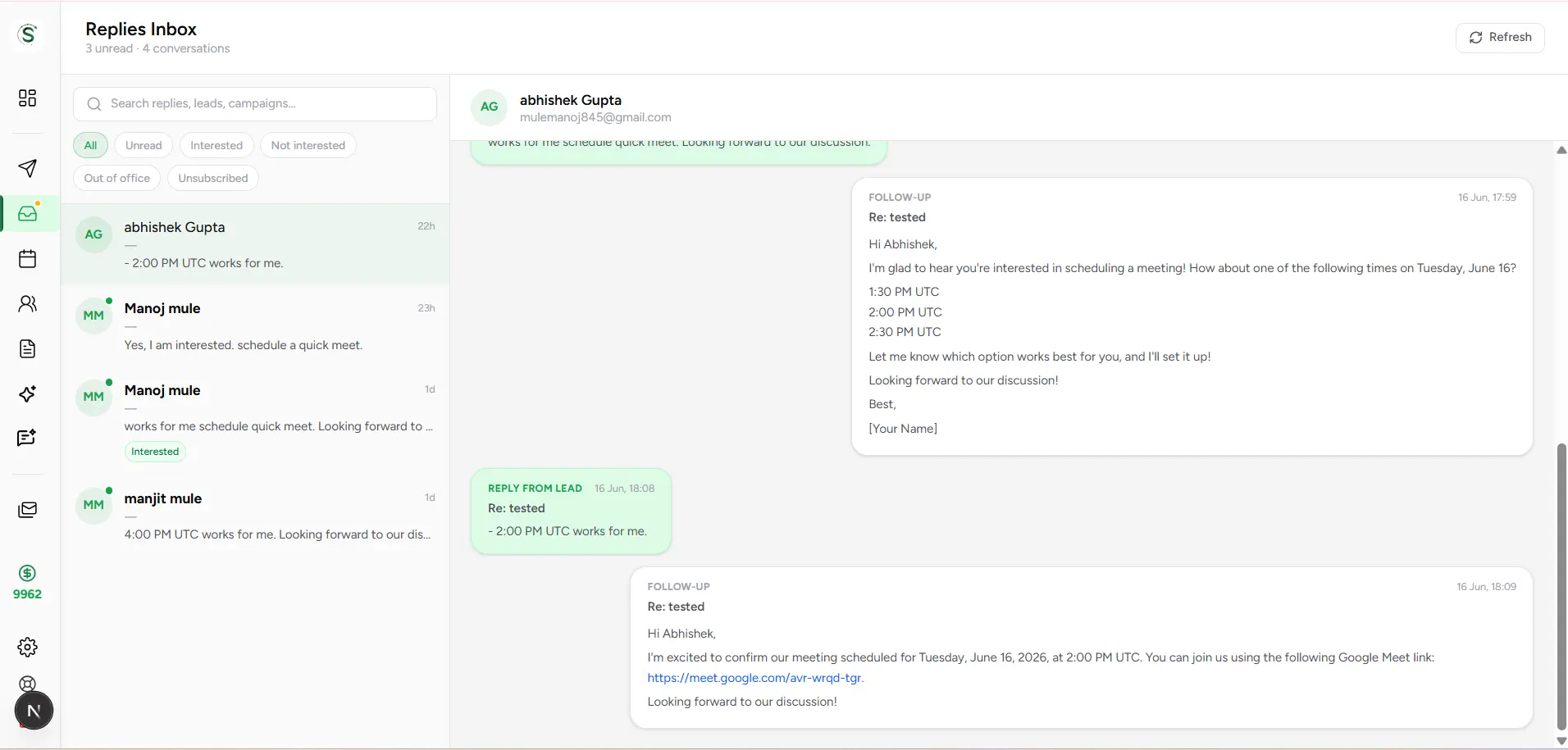
| Field | What it means |
|---|---|
| Interested | The lead has expressed genuine interest — asking for more information, requesting a demo, or signaling readiness to meet. Prioritize these conversations immediately. |
| Not Interested | The lead has explicitly declined or is not the right fit at this time. These conversations are tracked so follow-up sequences can be halted appropriately. |
| Out of Office | An auto-reply detected from a temporarily unavailable lead. Consider timing a follow-up for when they return to make the outreach count. |
| Unsubscribed | The lead has opted out of further communication. They are automatically excluded from future campaign emails to ensure compliance. |
| Other | Replies with unclear or mixed intent that don't fit standard categories. Review these manually to determine the most appropriate next step. |
AI Classification
Every incoming reply is instantly analyzed and labeled by AI — no manual sorting, no missed intent signals across your inbox.
Lead Prioritization
Interested leads surface immediately so your team spends time on the highest-value conversations first, not the loudest ones.
Follow-Up Planning
Classifications make it easy to decide the right next action — book a meeting, send a follow-up, pause the sequence, or remove the lead.
Campaign Insights
See which campaigns drive the most interested replies and which generate friction — actionable signal for improving future outreach.
Inbox
Conversation Thread View
Selecting a conversation opens the full email thread — every outbound email your campaign sent and every reply the lead has written, displayed in chronological order. Use this view to understand the complete history of a relationship before responding or deciding your next move.
Every sent email and lead reply in a single threaded view — complete context for every conversation, always in chronological order.
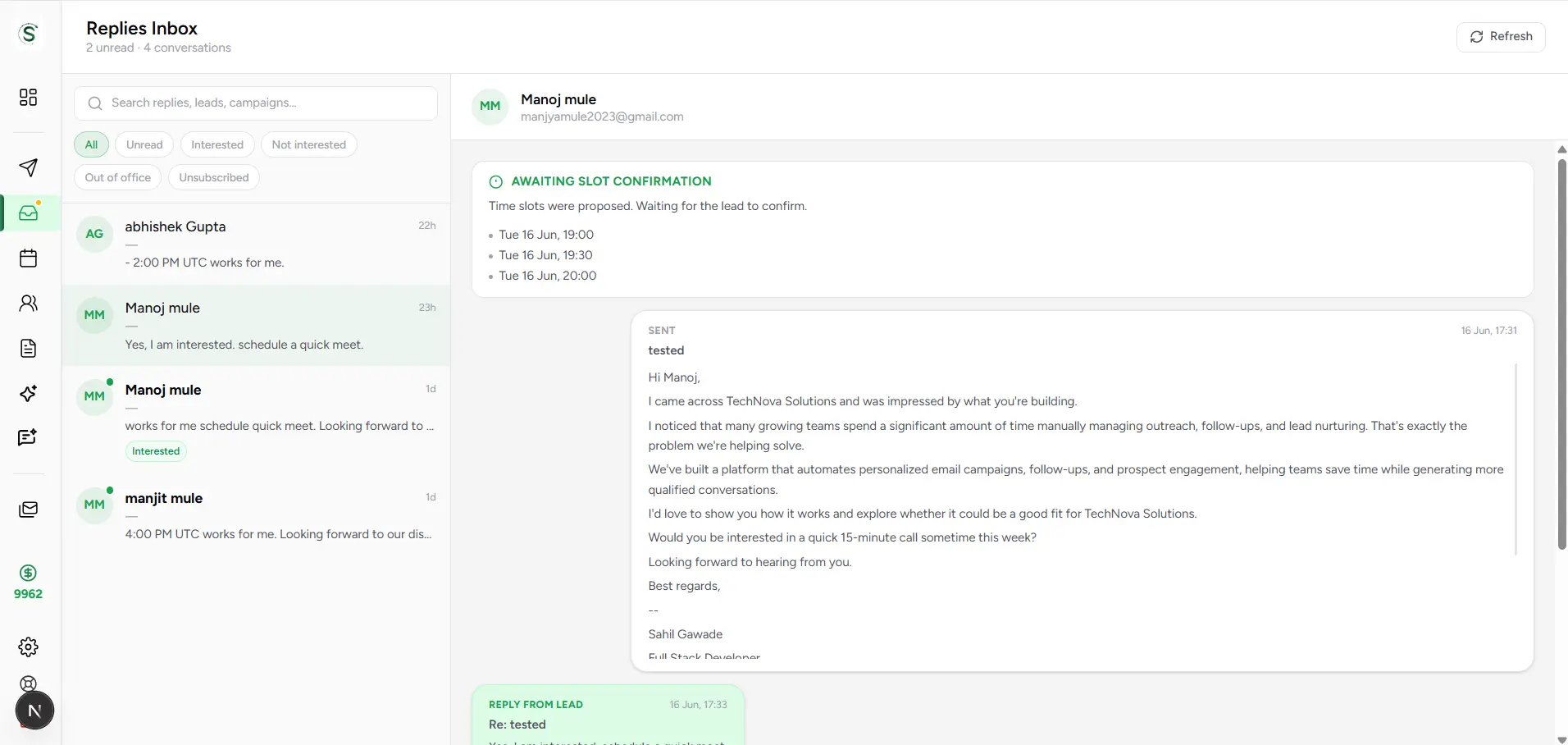
Select a conversation
Click any row in the conversation list to open the thread. Unread conversations are highlighted so the most urgent ones are easy to spot immediately.
Review lead details
Check the lead's name, email address, and the campaign that drove this reply — so you have full outreach context before reading the thread.
Read the full email history
Scroll through the complete chronological thread — every email your campaign sent and every reply the lead wrote, in the order they happened.
Assess response intent
Check the AI classification alongside the thread content to gauge how warm this lead really is and what level of interest they're showing.
Take action
Reply directly from the thread, schedule a meeting, or note the outcome and move on. The thread stays updated as the conversation continues.
Full context for the whole team
Inbox
Meeting Detection
When a lead's reply signals readiness to meet, the AI picks it up automatically. No manual review required — the system detects scheduling intent, checks your Google Calendar availability, proposes open slots, and books the meeting once the lead confirms a time. The entire flow happens without leaving the conversation.
When a meeting is booked from a reply, the conversation thread updates with the scheduled time, duration, and Google Meet link — all without leaving the inbox.
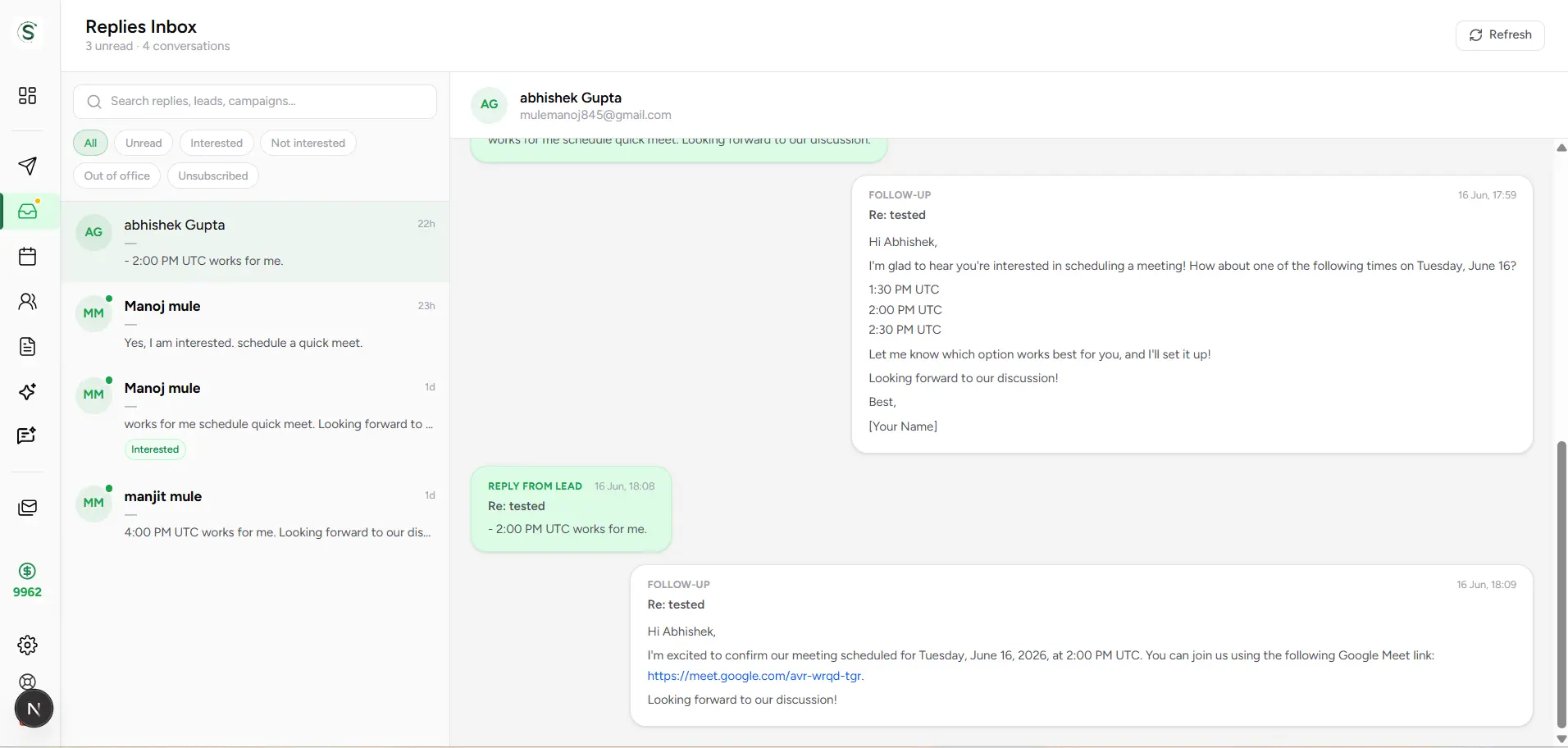
Lead Shows Interest
The AI reads the reply and detects that the lead wants to meet — using natural language understanding, not keyword rules.
Meeting Scheduled
The AI checks your Google Calendar availability, proposes open slots to the lead, and confirms the booking once a time is agreed.
Join the Meeting
A Google Meet link is created automatically and appears right inside the conversation thread — one click to join when the time comes.
From reply to confirmed meeting — automatically
Meetings
Manage AI-Scheduled Meetings
The Meetings page is the central hub for every meeting scheduled through AI-powered email conversations. When a lead signals interest in connecting, the AI detects the intent, checks your Google Calendar for open slots, proposes available times, and books the meeting automatically once a time is confirmed — no manual coordination required. Track every booking, access Google Meet links, and manage your entire meeting pipeline from one place.
A live view of all AI-scheduled meetings — status badges, confirmed times, Google Meet links, and lead context, all accessible from a single dashboard.
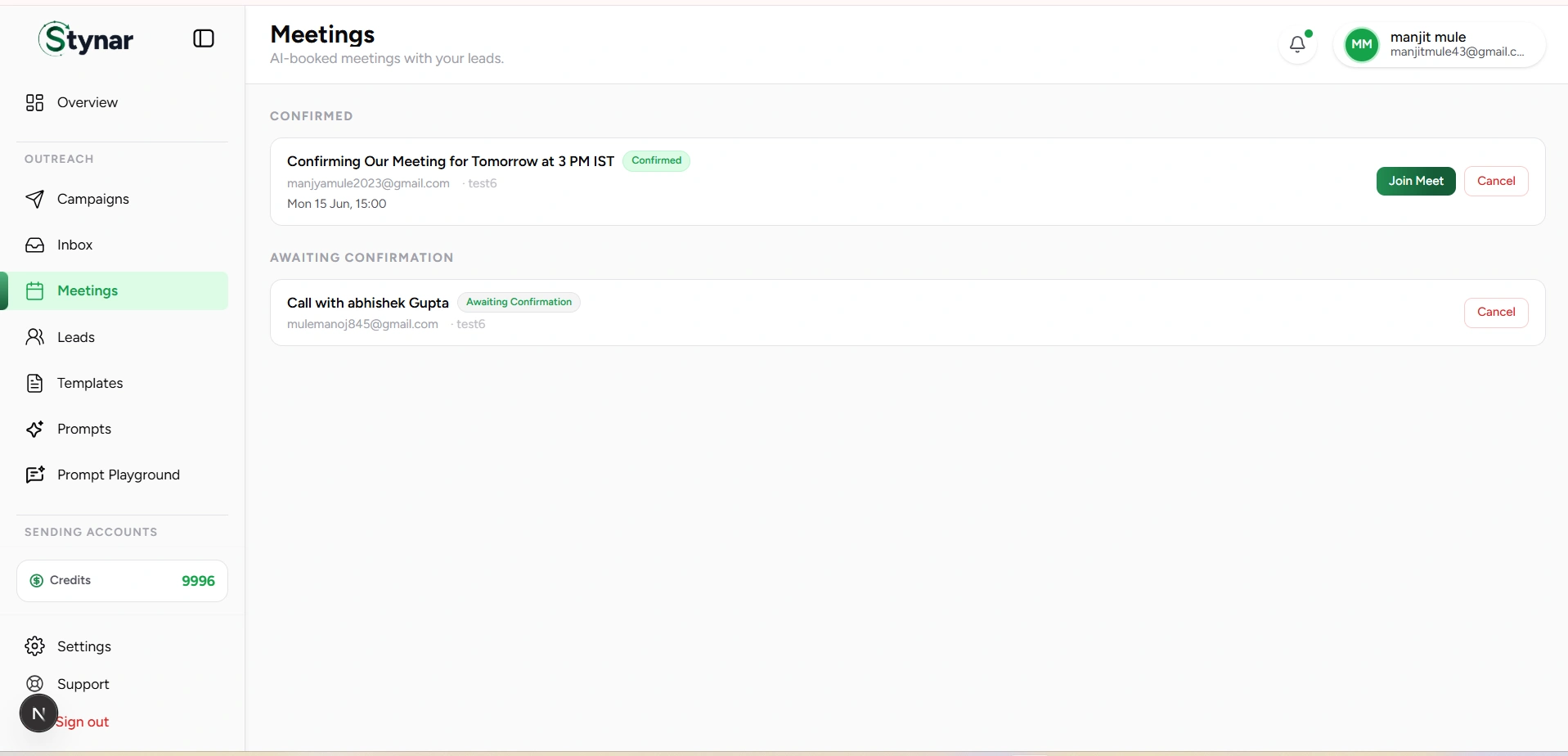
Google Calendar Integration
Connect your Google Calendar once to enable real-time availability detection, conflict prevention, and automatic event creation for every booked meeting.
AI Meeting Detection
The AI reads incoming lead replies for scheduling intent and triggers the booking workflow automatically — no keyword rules or manual flagging needed.
Automatic Scheduling
Open time slots are pulled from your live calendar and proposed to the lead in real time — no back-and-forth coordination required.
Google Meet Links
Every confirmed meeting automatically includes a unique Google Meet link — ready for both host and guest without any manual conferencing setup.
Meeting Tracking
Monitor every booking across Confirmed, Awaiting Confirmation, Cancelled, and Expired states so you always know where each meeting stands.
Meeting Cancellation
Cancel any booking directly from the dashboard when plans change. Records are preserved for transparency and historical reporting.
How AI Scheduling Works
Lead requests a meeting
A lead replies to your outreach signaling they want to connect — using phrases like 'let's chat,' 'I'd love a call,' or similar natural language expressions of interest.
AI detects intent
The AI reads the reply and identifies scheduling intent using natural language understanding — no predefined keywords or manual triggers needed.
Calendar availability is checked
Your connected Google Calendar is queried in real time to identify genuinely open time slots, respecting existing events and avoiding double-bookings.
Meeting slots are proposed
Available times are sent to the lead so they can choose what works best — based on your actual schedule, not a static template.
Lead selects a slot
The lead confirms their preferred time, moving the booking to Confirmed status and locking in the schedule.
Meeting is booked
A calendar event is created on your Google Calendar, a Google Meet link is generated, and the meeting appears on your dashboard — all automatically.
Fully automated from reply to booking
Meetings
Connect Google Calendar
Connecting Google Calendar is the one-time setup step that unlocks AI-powered meeting scheduling. Once connected, the platform checks your live availability, avoids conflicts, proposes accurate time slots, creates calendar events, and generates Google Meet links — all automatically whenever a lead signals readiness to meet.
Grant calendar access once and the platform handles availability checking, conflict prevention, event creation, and Google Meet link generation for every meeting going forward.
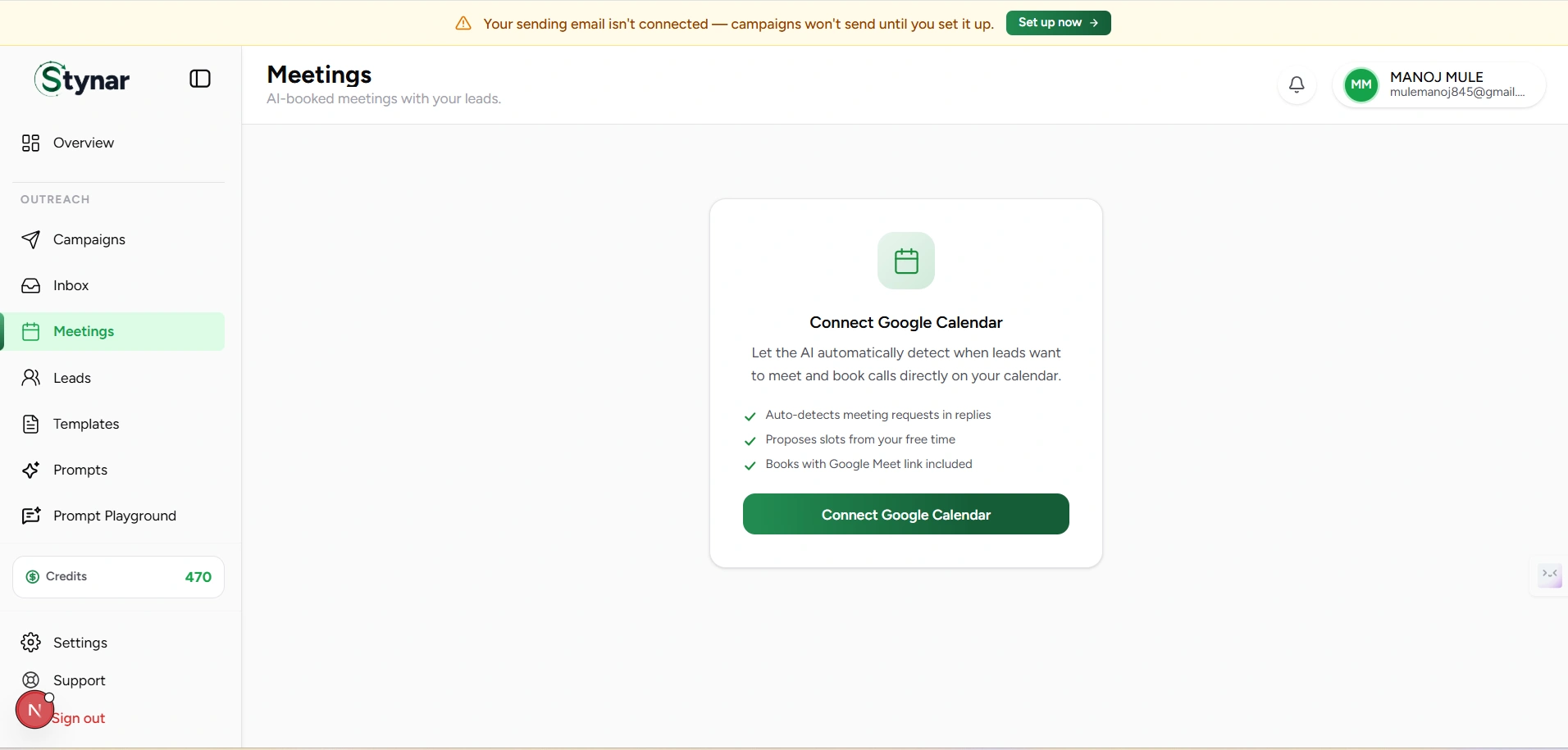
Calendar Connection Benefits
Real-Time Availability
The platform reads your live calendar to find genuinely free slots — so leads are never offered times you're already booked.
Automatic Meet Links
A unique Google Meet conference link is generated automatically for every confirmed meeting — no manual conferencing setup needed.
Conflict Prevention
Existing events are respected when proposing time slots, eliminating double-bookings and scheduling conflicts across your calendar.
Native Calendar Reminders
Confirmed meetings are written directly to your Google Calendar, so you receive standard reminders alongside all your other events.
Connection Workflow
Open Meetings
Navigate to the Meetings page from the main sidebar.
Connect Calendar
Click the Connect Google Calendar button to start the OAuth authorization flow.
Authorize access
Sign in to your Google account and grant the permissions required for availability checking and calendar event creation.
Verify the connection
The platform confirms successful authorization and displays your calendar as active — the connection status is visible on the Meetings page.
AI scheduling is live
From this point on, any lead reply that signals scheduling intent will trigger the full automated booking workflow — no further setup needed.
Secure OAuth authentication
Meetings
Meeting Statuses
Every meeting on the dashboard carries a status that reflects exactly where it is in the scheduling lifecycle. From the moment time slots are proposed to a confirmed booking or a cancellation, status badges give you instant visibility into your entire meeting pipeline without opening individual records.
| Field | What it means |
|---|---|
| Confirmed | The meeting is booked. A calendar event has been created and a Google Meet link is ready for both host and guest. |
| Awaiting Confirmation | Available time slots have been sent to the lead. The meeting is pending their selection of a preferred time. |
| Cancelled | The meeting was cancelled from the dashboard. The record remains visible in historical meetings for reference and reporting. |
| Booking Failed | An error occurred during the booking process — for example, a calendar permission issue. Review the meeting and retry if needed. |
| Expired | The proposed time slots were not confirmed by the lead within the available window and have lapsed. |
Confirmed
A time has been agreed on. The calendar event is set, the Google Meet link is live, and the meeting is ready to happen.
Awaiting Confirmation
Slots have been sent but not yet chosen. The meeting is in the lead's court — waiting on their reply to lock in a time.
Past / Cancelled
Meetings that have ended — either completed, cancelled manually, or expired without confirmation. Retained for audit and reporting.
Live status updates
Meetings
Meeting Information
Every meeting record gives you a complete picture of the booking — who it's with, which campaign conversation triggered it, when it's scheduled, and how to join. All the context you need to walk into each call fully prepared, without switching between tools or digging through email threads.
A full meeting record showing the lead's name, email, campaign origin, scheduled time, current status, and Google Meet link — everything in one view.
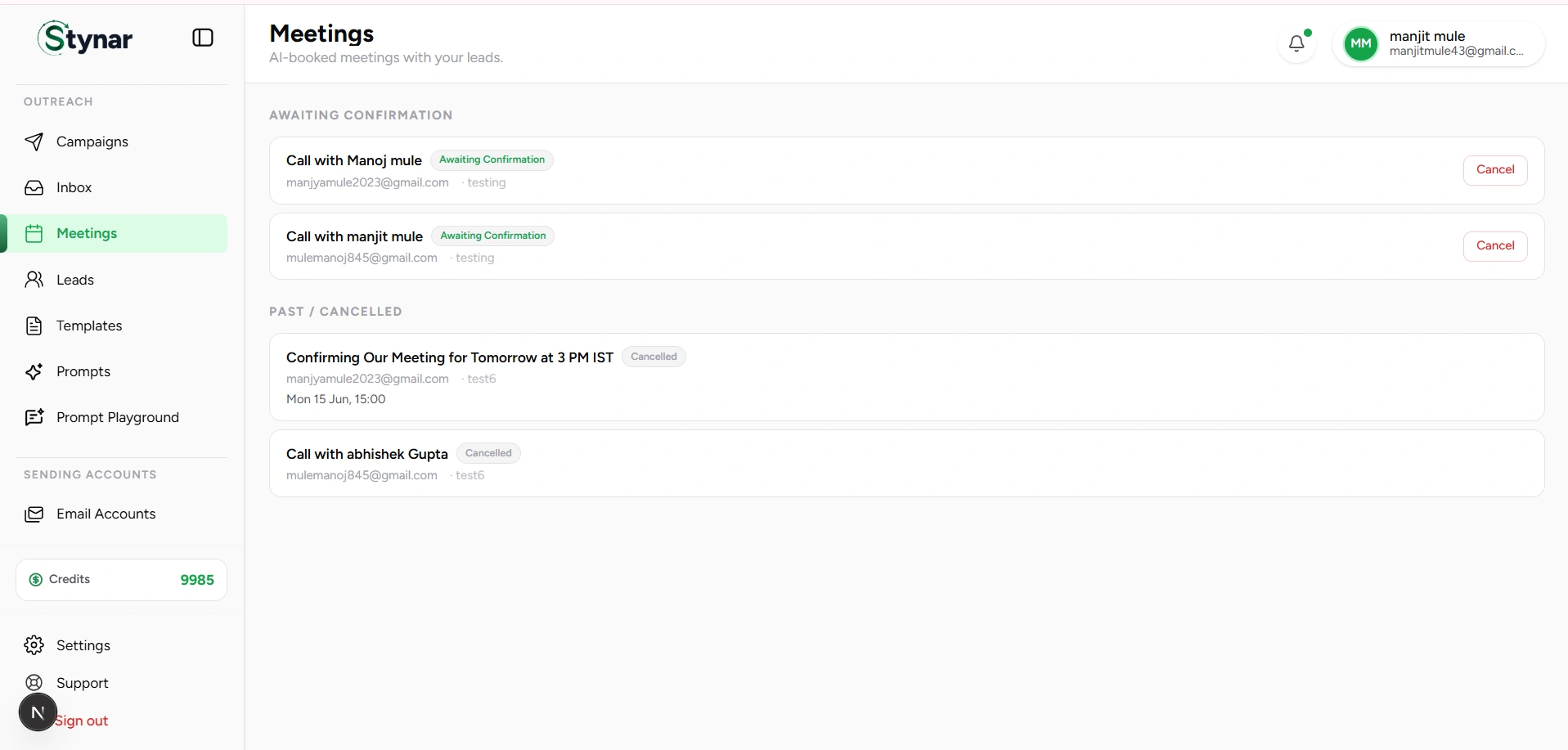
Meeting Data Fields
| Field | What it means |
|---|---|
| Meeting Title | The title assigned to the calendar event — typically includes the lead's name and the meeting purpose for easy identification. |
| Lead Name | The name of the lead you're meeting with, pulled directly from the contact record associated with the conversation. |
| Lead Email | The email address of the lead — confirming exactly which contact this booking belongs to. |
| Campaign | The outreach campaign whose email conversation triggered the meeting request, giving you full context for the call. |
| Meeting Time | The confirmed date and time of the meeting, based on the slot the lead selected from the proposed options. |
| Meeting Status | The current state of the booking — Confirmed, Awaiting Confirmation, Cancelled, Booking Failed, or Expired. |
| Google Meet Link | The unique conference link generated for this meeting. Click to join when the time comes — no copy-pasting needed. |
Lead Context
Confirm who the meeting is with and review their contact details and campaign origin before the call — so you're never walking in cold.
Scheduling Details
See the exact confirmed date, time, and duration of the meeting — everything you need to plan your day without checking your calendar separately.
One-Click Conference Access
The Google Meet link is right on the record. No digging through calendar invites or email threads when it's time to join.
Status at a Glance
The current meeting status is always visible on the record — identify bookings that are confirmed, still pending, or need follow-up in seconds.
Meetings
Join Google Meet
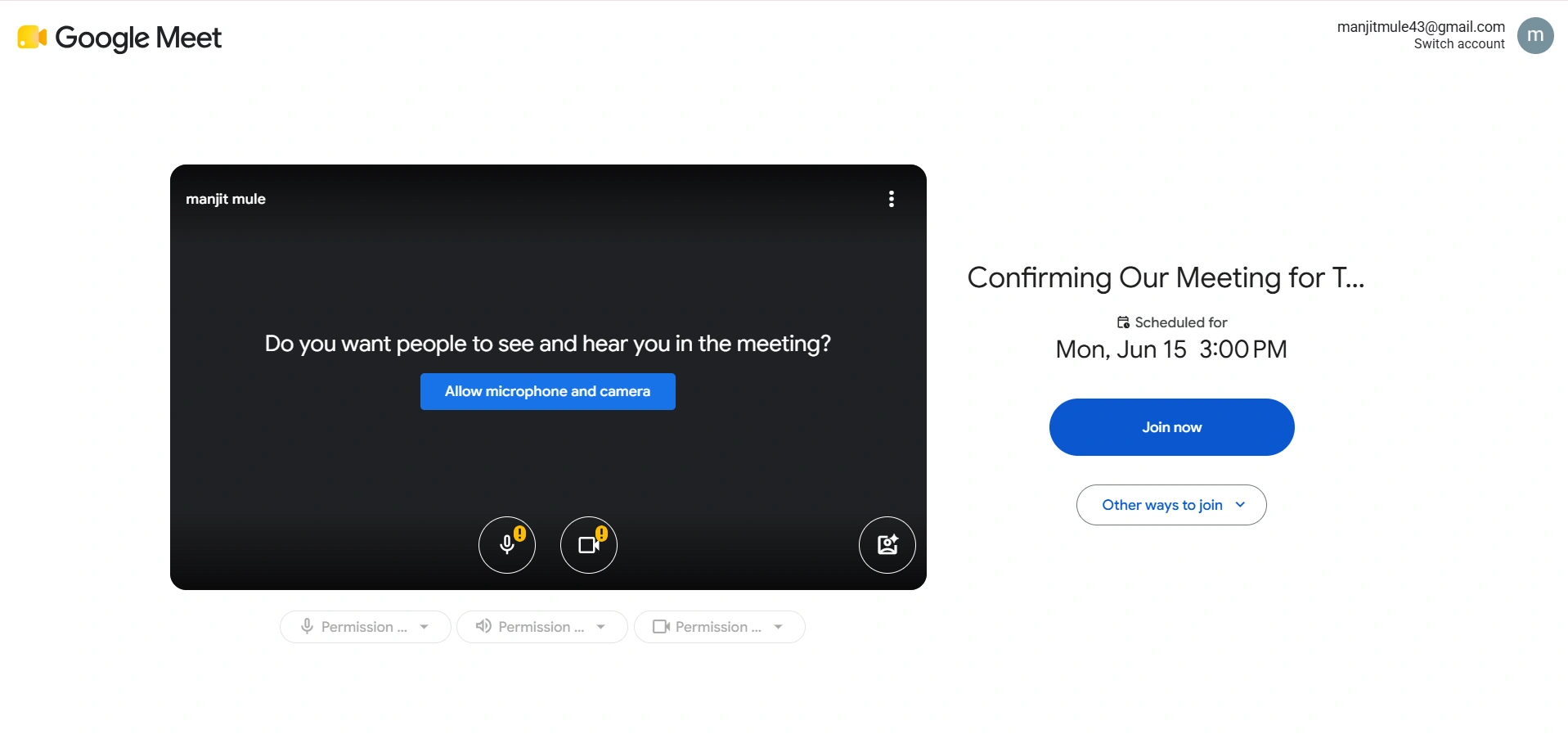
Every confirmed meeting comes with a Google Meet link generated automatically at the point of booking. When it's time for the call, launch the session directly from the Meetings dashboard — no digging through calendar invites, no copy-pasting links, no manual setup of any kind.
The Join Meet button is visible directly on every confirmed meeting card — one click opens the Google Meet session in a new tab.
Joining a Meeting
Open Meetings
Go to the Meetings page from the main sidebar to see all your scheduled and upcoming meetings.
Locate the confirmed meeting
Find the meeting in the Confirmed section. Use the lead name, date, or time to identify the right booking quickly.
Click Join Meet
Click the Join Meet button on the meeting card to open the conference session.
Launch Google Meet
Google Meet opens in a new browser tab — you're dropped straight into the session without any additional steps.
Start the conversation
The lead joins from their invite link. Pick up the relationship where the email conversation left off.
No setup required
Meetings
Cancel a Meeting
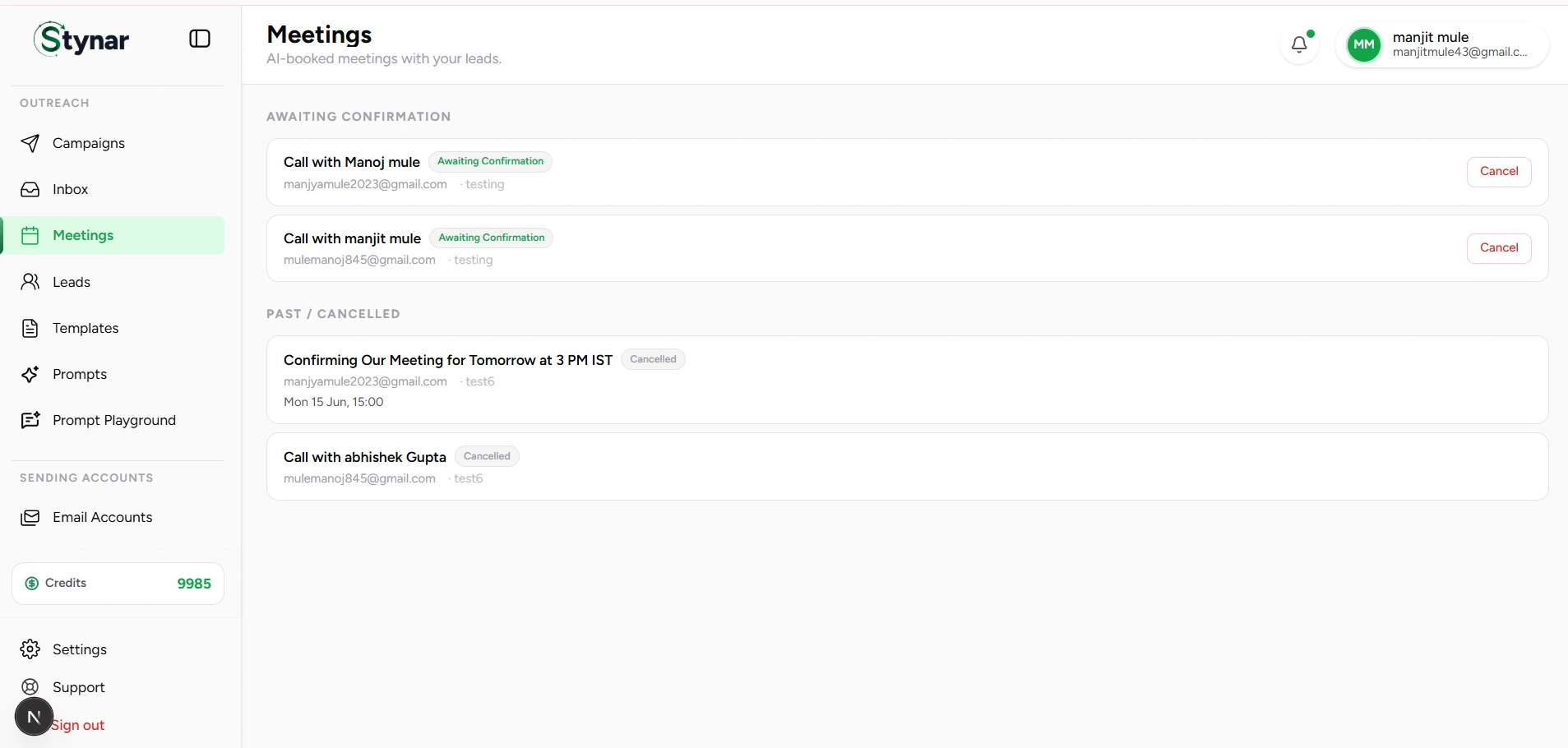
If plans change, meetings can be cancelled directly from the Meetings dashboard. Cancellation updates the status immediately and preserves the booking record for historical reference — giving you a complete audit trail of all scheduling activity without losing any context.
Cancel a meeting with a single action from the dashboard. The status updates immediately and the full booking record is retained for reporting and reference.
Cancellation Workflow
Locate the meeting
Find the confirmed meeting you need to cancel. Use the lead name, scheduled date, or status filter to locate it quickly in the dashboard.
Select Cancel
Click the Cancel option on the meeting card. A confirmation prompt will appear to prevent accidental cancellations.
Cancellation is processed
The platform updates the meeting record, removes the active booking, and reflects the change across the dashboard immediately.
Status updated to Cancelled
The meeting status changes to Cancelled and the record moves to historical meetings, where it remains visible for reporting and reference.
Records are always preserved
Meetings
Meeting Lifecycle
The meeting lifecycle maps the complete journey of an AI-scheduled booking — from the moment a lead signals interest, through slot selection and confirmation, to the meeting itself and beyond. Understanding each stage helps you track where every booking stands, anticipate what happens next, and manage your pipeline with confidence.
Intent Detected
A lead's reply signals they want to meet. The AI reads the natural language in the message and triggers the scheduling workflow — no manual action needed.
Slots Proposed
The platform checks your live calendar and sends genuinely available time slots to the lead — tailored to your actual schedule and free of conflicts.
Meeting Confirmed
The lead picks a time. A calendar event is written to Google Calendar, a Meet link is generated, and both parties are ready — fully automated.
Conversation-Driven
Meetings originate from real email conversations — triggered by genuine scheduling intent in lead replies, not form submissions or manual requests.
Zero Coordination Overhead
The entire workflow from intent detection to confirmed booking runs automatically, eliminating the email back-and-forth that typically surrounds scheduling.
Calendar Synchronization
Every confirmed meeting is written directly to your Google Calendar — keeping your schedule accurate and your reminders in sync across every tool you use.
Conferencing Included
Google Meet links are generated at the point of confirmation — guests receive the link in their invite and hosts see it directly in the Meetings dashboard.
From reply to confirmed meeting — end to end
Focus on conversations, not coordination
Sending Accounts
Understanding the Email Accounts
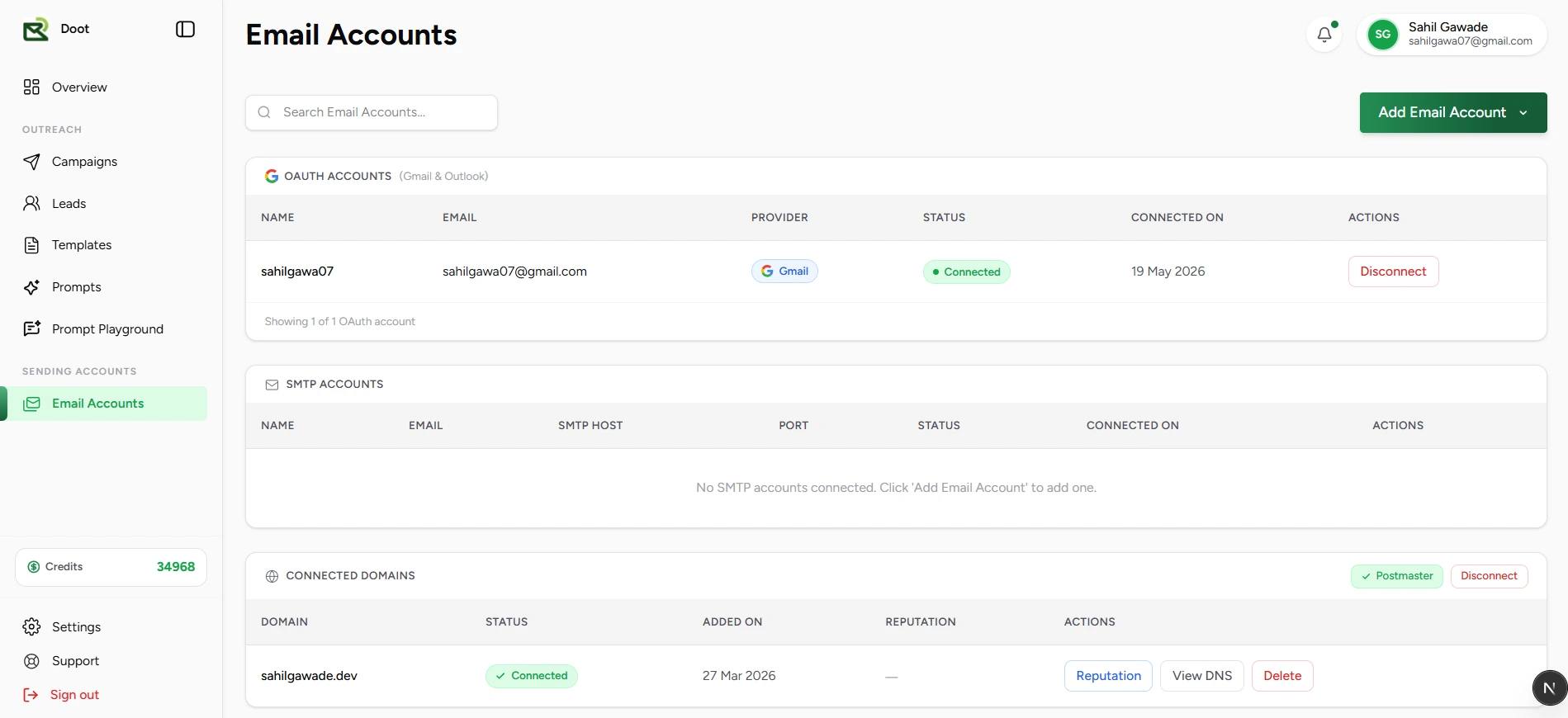
Email Accounts is the central hub for everything that determines how your campaigns reach recipients. Connect Gmail or Outlook via secure OAuth, configure SMTP mailboxes from any compatible provider, verify custom sending domains, and monitor sender reputation — all from one workspace. At least one verified sender must be active before any campaign can go live.
Connect OAuth mailboxes, configure SMTP senders, verify sending domains, and monitor reputation — all the infrastructure that keeps your outreach healthy, in one place.
| Field | What it means |
|---|---|
| OAuth Accounts | Gmail and Outlook mailboxes connected via secure OAuth — no passwords stored, full control retained by you. |
| SMTP Accounts | Custom mailboxes connected using SMTP credentials — compatible with any standard mail provider. |
| Connected Domains | Sending domains verified through DNS authentication records for improved deliverability and sender trust. |
| Google Postmaster | Gmail-specific reputation monitoring — track domain trust scores, spam rates, and authentication health. |
| Search | Quickly locate any connected sender by name or email address. |
| Add Email Account | Connect a new Gmail or Outlook mailbox, configure an SMTP account, or add a sending domain. |
Required before sending
Keep sender accounts healthy
Sending Accounts
Connect Gmail and Outlook mailboxes
OAuth lets Stynar send campaigns from your Gmail or Outlook mailbox without ever storing your password. Authentication is handled entirely by Google or Microsoft — giving you full control over access with the ability to revoke it at any time from your provider's security settings.
Open Add Email Account
Click Add Email Account in the top-right corner of the Email Accounts page to open the provider selection.
Choose Gmail or Outlook
Select the provider you want to connect. Both use the same secure OAuth flow — your credentials are authenticated directly with Google or Microsoft, never with Stynar.
Sign in and approve permissions
Authenticate with your account and approve all requested permissions. For Gmail, this includes both the Send permission and the Reply Sync permission — approve both for the best experience.
Account is ready
Once authorized, the mailbox appears in the OAuth Accounts table with a Connected status and is immediately available for assignment to campaigns.
| Field | What it means |
|---|---|
| Name | The display name associated with the connected mailbox. |
| The sender address used for campaign delivery. | |
| Provider | The connected provider — Gmail or Outlook. |
| Status | Current connection health — Connected, Disconnected, or Reconnect Required. |
| Permissions | The access scopes granted to this account. Send confirms the account can deliver campaign emails. Reply sync confirms that lead replies land in your real inbox — shown as a warning badge if this permission is missing. |
| Connected On | The date the account was originally authorized. |
| Actions | Reconnect to refresh or upgrade permissions, or disconnect to remove the account from Stynar entirely. |
Reply sync permission
Gmail accounts have two separate permissions: Send (required for campaign delivery) and Reply sync (required for replies to land in your real inbox). Send is granted during the initial OAuth connection. Reply sync requires an additional Gmail read-access scope — enabled by clicking Re-connect on accounts that show the reply sync warning badge.
With reply sync enabled
Without reply sync
Connection statuses
- Connected – Account is authorized and ready to send campaign emails.
- Disconnected – Authentication has expired or been revoked. Campaigns using this sender are paused.
- Reconnect Required – A permission issue requires re-authorization before sending can continue.
Approve all requested permissions
Sending Accounts
Set up and verify SMTP sending
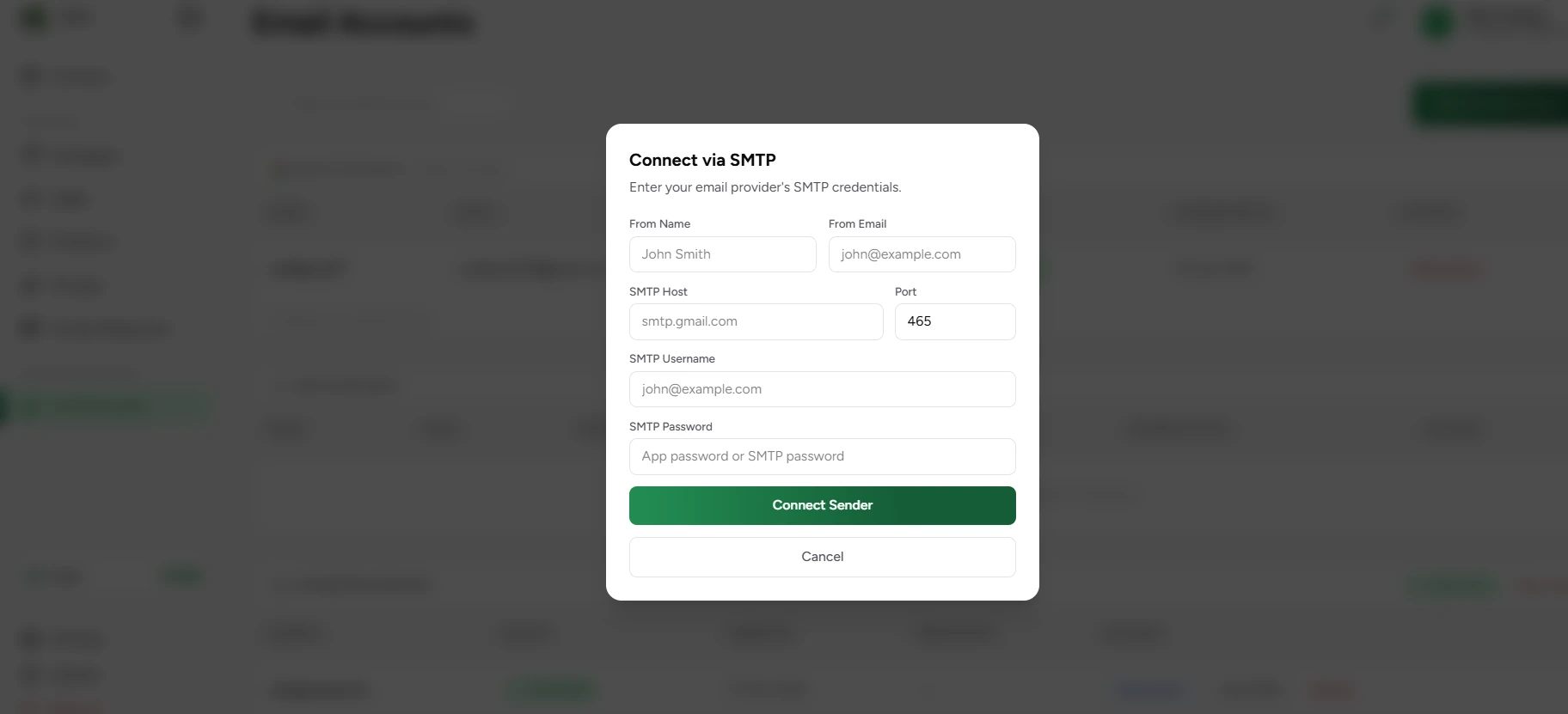
SMTP accounts let Stynar send campaigns through any external mail provider — making it the right choice when Gmail or Outlook OAuth is unavailable, or when routing email through a specific platform such as Amazon SES, SendGrid, Mailgun, Zoho Mail, or a private mail server.
| Field | What it means |
|---|---|
| From Name | The display name recipients see in their inbox — typically your name or company name. |
| From Email | The sender address that appears in the From field for all campaign emails. |
| SMTP Host | The SMTP server hostname provided by your mail provider. |
| Port | The connection port — typically 465 for SSL or 587 for STARTTLS. |
| SMTP Username | Your mailbox username or email address used for SMTP authentication. |
| SMTP Password | Your account password or an app-specific password generated by your provider. |
Add SMTP Account
Enter the sender identity and SMTP credentials for your mail provider.
Verify Connection
Run a verification test to confirm the credentials and server connectivity are valid.
Re-verify
Run verification again after updating credentials or changing server settings.
Send Campaigns
Assign the verified SMTP account to campaigns and begin delivery.
| Field | What it means |
|---|---|
| Verify | Tests SMTP server connectivity and credential authentication — run this before assigning the account to campaigns. |
| Edit | Update sender display name, email address, or SMTP credentials without removing the account. |
| Disconnect | Permanently remove the SMTP account from Stynar. |
| Status | The current verification state of the account — Not Verified, Testing, Connected, or Failed. |
SMTP verification statuses
- Not Verified – Credentials have been saved but verification has not been run yet.
- Testing – Verification is currently in progress.
- Connected – The SMTP connection was established successfully and the account is ready to send.
- Failed – The connection or authentication failed — check your credentials, hostname, and port settings.
Always verify before sending
Compatible SMTP providers
View all SMTP senders, check verification status, update credentials, and manage account connections from the SMTP accounts table.
Sending Accounts
Google Postmaster monitoring
Once a domain is verified, connect Google Postmaster Tools to unlock Gmail-specific deliverability intelligence. Postmaster provides direct insight into how Gmail views your sending domain — covering reputation scores, spam rates, and authentication health. This data isn't available from any other source and is essential for proactively managing inbox placement at scale.
| Field | What it means |
|---|---|
| Domain Reputation | Gmail's trust score for your sending domain — from High to Low. A declining score is an early warning that delivery is at risk. |
| Spam Rate | The percentage of your emails that Gmail users have marked as spam. Keep this below 0.1% to maintain strong inbox placement. |
| DKIM | Authentication success rate for DomainKeys Identified Mail — confirms that messages haven't been altered in transit. |
| SPF | Sender Policy Framework validation status — confirms that your sending server is authorized to send on behalf of your domain. |
| DMARC | Domain-based Message Authentication alignment and policy status — governs how Gmail handles messages that fail SPF or DKIM checks. |
Data appears after volume builds
Act on declining scores early
Sending Accounts
Protect sender reputation and inbox placement
Reaching the inbox consistently requires more than a connected sender. Domain authentication, sending cadence, list quality, and ongoing reputation monitoring all play a role. Use the checklist below to build a sending setup that protects long-term deliverability and keeps your campaigns performing at their best.
Recommended production setup
- Connect a Gmail or Outlook mailbox via OAuth.
- Add and verify a custom sending domain.
- Complete DNS authentication — set up SPF, DKIM, and DMARC records.
- Connect Google Postmaster Tools to monitor Gmail reputation.
- Warm up new sender mailboxes gradually before scaling volume.
- Monitor domain reputation and spam rates on a regular cadence.
- Reconnect any disconnected accounts immediately to avoid campaign pauses.
- Review campaign failures and pause reasons to catch delivery issues early.
- Use clean, validated lead lists — remove invalid addresses before importing.
- Avoid sending high volumes from brand-new mailboxes or unwarmed domains.
- Enable reply sync on Gmail accounts for the most personal reply experience.
The highest-performing setup
Audience
Manage contacts from the Leads page
The Leads page is your central view of every contact across all campaigns. Search and filter by name, email, campaign, status, or group — then inspect, edit, label, export, or remove contacts without leaving the page. Contacts load automatically as you scroll, so managing thousands of leads stays fast and fluid no matter how large your audience grows.
Search, filter, sort, and segment your full contact database — with lead detail drawers, bulk actions, import options, and export all accessible from one place.
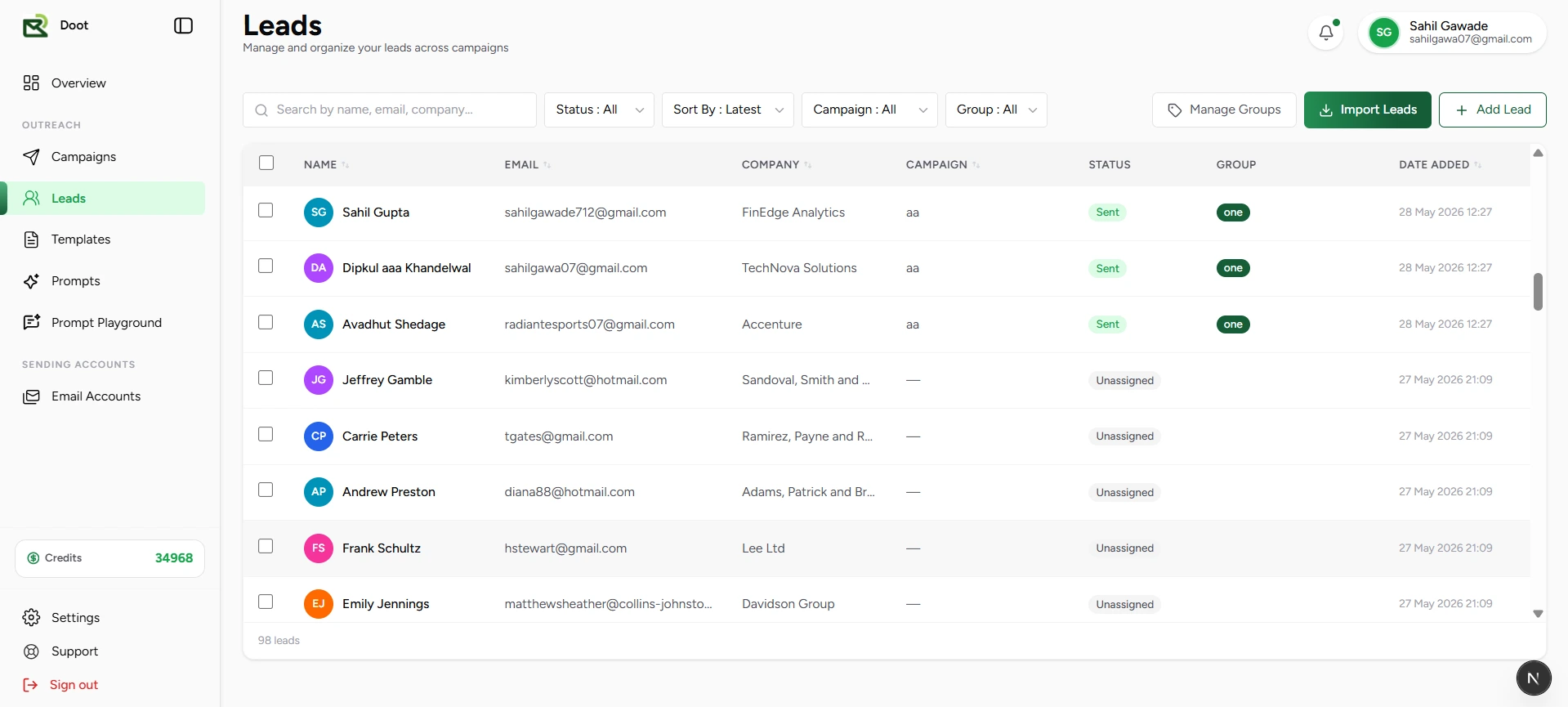
Search
Find any contact instantly by searching name, email, company, campaign name, or group label across your entire leads database.
Filters
Narrow your view by lead status, campaign, group, or date added — surface exactly the contacts you need without scrolling through everything.
Groups
Apply, rename, and remove group labels in bulk to segment contacts by source, persona, campaign stage, or any criteria that fits your workflow.
Lead drawer
Click any lead to open a slide-out detail panel where you can inspect and edit all contact fields without leaving the table.
Add lead
Manually add individual contacts with name, email, phone, company, and custom fields directly from the Add Lead sidebar.
Import leads
Bring in contacts from a CSV file, pull from HubSpot, Pipedrive, or Zoho CRM, or select existing lead groups to add directly to a campaign.
Export leads
Select any combination of contacts and export them as a CSV for offline analysis, reporting, or use in external tools.
Bulk delete
Select and remove multiple contacts at once — a confirmation prompt prevents accidental deletions.
Column sorting
Click any column header to sort contacts ascending or descending by name, email, company, campaign, or date added.
Keyboard shortcut
Contacts load automatically
Plan limits
Audience
Import leads from CSV, CRM, or existing groups
Leads can be imported from multiple sources — upload a CSV file, connect a CRM directly, or select existing contact groups. Once your source is selected, map fields to the right lead properties, review and fix records inline, then confirm your audience before finalizing. No matter the source, the same clean import workflow applies.
CSV upload
Upload any CSV or Excel file containing your contacts. Email and first name are required — all additional columns are carried in as custom template variables.
Column mapping
Match file or CRM column headers to standard lead fields — firstName, lastName, email, company — or custom variables. Columns marked 'skip' are ignored during import.
Inline editing
Edit any contact field directly in the review table. Use Tab to move between cells and Enter to advance rows — no separate modal needed.
Add leads manually
Add individual contacts during the review step without uploading a new file — useful for filling gaps or adding contacts one at a time.
Add custom columns
Insert new data columns during review and fill in values for all leads before finalizing the import.
Validation banners
Red banners block upload for missing required fields. Yellow banners warn about incomplete optional data — so issues can be fixed before contacts are imported.
CRM import
Connect HubSpot, Pipedrive, or Zoho CRM and pull contacts in directly — no spreadsheet export from your CRM required.
email,firstName,lastName,company,website,linkedIn
maya@northstar.io,Maya,Rao,Northstar,https://northstar.io,https://linkedin.com/in/mayaChoose your import source
Select CSV Upload to import from a file, CRM Import to pull contacts from a connected CRM platform, or choose an existing lead group to add a pre-built segment directly to your campaign.
Upload or connect
For CSV: select the file from your device. For CRM: authenticate your account and browse available contacts. For groups: select one or more existing segments to carry forward.
Map your fields
Match your file or CRM column headers to the corresponding lead fields. Unmapped or custom columns become personalization variables available in email templates.
Review, edit, and confirm
Inspect imported records in the review table. Edit missing fields inline, add individual contacts manually, resolve validation warnings, then confirm to finalize the import.
CRM Integrations
Stynar connects directly to your CRM so you can import contacts without ever exporting a spreadsheet. Authenticate your HubSpot, Pipedrive, or Zoho CRM account, browse your existing contacts, and bring them into the platform in just a few steps — with field mapping included to ensure your data carries over cleanly.
Authenticate a CRM account, browse and select contacts, map fields, and import leads directly — no CSV export from your CRM required.
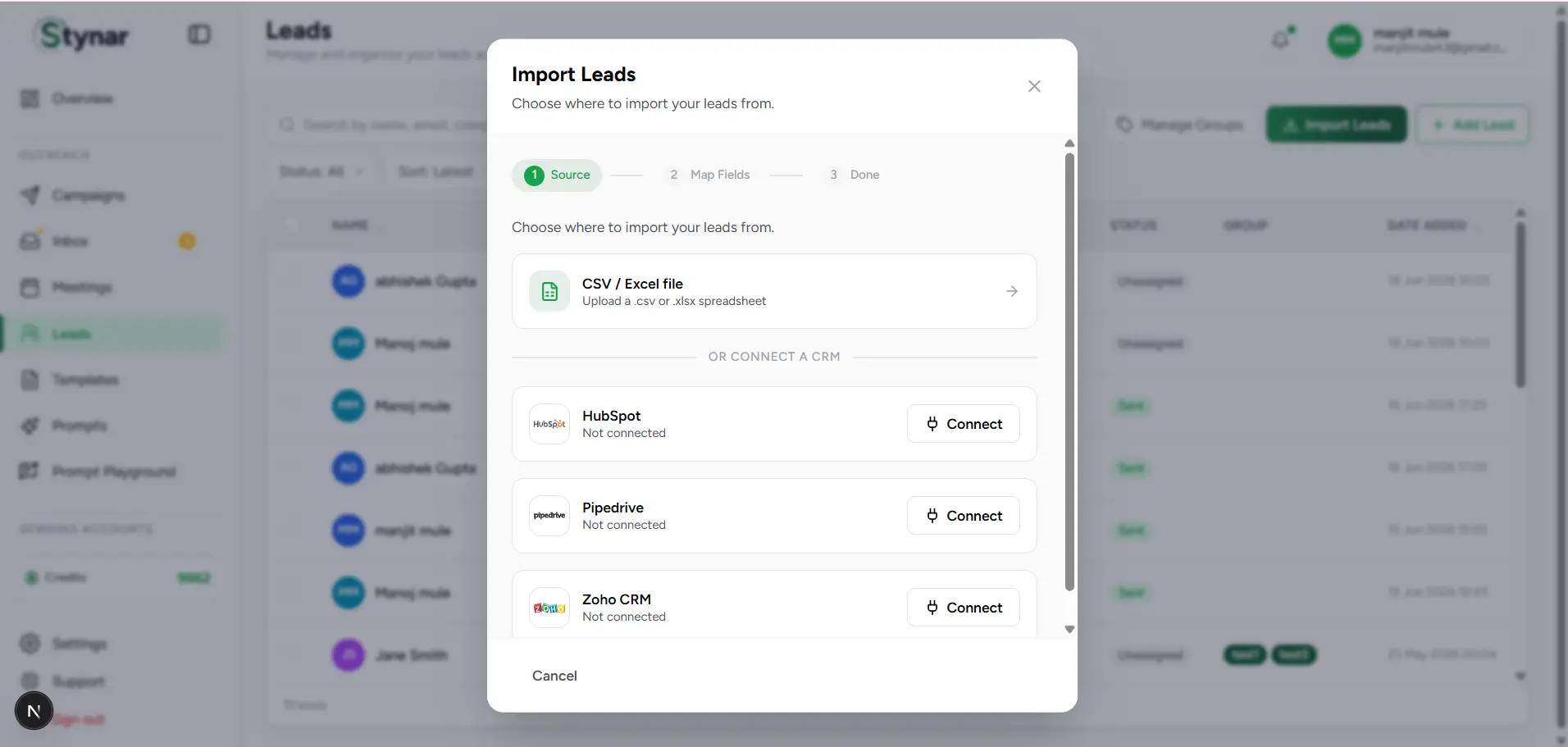
Secure authentication
Connect HubSpot, Pipedrive, or Zoho CRM using OAuth — your CRM credentials are authenticated directly with the provider and never stored on the platform.
Contact browsing
Browse your full CRM contact list and select exactly who you want to import — individual records, filtered views, or entire contact lists.
Field mapping
Map CRM contact properties to Stynar lead fields before importing — so names, emails, companies, and custom fields all land in the right place.
No manual exports
Import fresh data straight from the source — no CSV files to prepare, no version drift between your CRM and your campaign audience.
Supported CRM Platforms
| Field | What it means |
|---|---|
| HubSpot | Connect your HubSpot CRM via OAuth and import contacts — including name, email, company, and any mapped custom contact properties. |
| Pipedrive | Authenticate with Pipedrive and pull in contacts and sales pipeline leads — name, email, company, and deal stage are available as import fields. |
| Zoho CRM | Connect Zoho CRM and import leads and contacts — name, email, company, and custom module fields can all be mapped during the import flow. |
Required fields block upload
Optional fields and personalization gaps
Duplicate emails are auto-skipped
Edit leads inline during review
Audience
Use groups and filters for segmentation
Groups are flexible labels applied to leads for segmentation, filtering, and bulk operations. A single lead can belong to multiple groups, making it easy to filter by overlap, build cross-segment audiences, and organize contacts by source, persona, campaign stage, or any criteria that fits your outreach strategy.
Select leads
Check one or more contacts in the table. The bulk action bar appears at the bottom of the screen with all available actions for your selection.
Apply a group label
Click Groups in the bulk action bar, type or choose a group name, pick a color, and confirm. The label is applied instantly to every selected lead.
Filter by group
Open the Group filter dropdown to view only contacts in a specific segment. Each group displays its lead count so you can gauge segment size at a glance.
Manage groups
Click Manage Groups to rename or delete existing labels. Renaming updates every lead in that group immediately. Deleting removes the label — never the leads themselves.
Useful group patterns
- Group by source — Webinar, LinkedIn, Referral, Inbound, or import batch date.
- Group by persona — SaaS Founders, Agency Owners, Sales Leaders, or Recruiters.
- Group by campaign stage — Warm Prospects, Needs Follow-Up, or Awaiting Demo.
- Apply multiple groups to the same lead for cross-filtering across segments.
- Export a filtered group as CSV for offline analysis or sharing with your team.
- Use groups to pre-build your audience before starting a new campaign.
- Import leads from a CRM or CSV and tag them into a group in the same workflow.
Renaming and deleting affects all leads
Leads can belong to multiple groups
Apply in bulk
Select any number of leads and assign a group label to all of them in a single action from the bulk action bar.
Filter by group
Use the Group dropdown to narrow the leads table to a specific segment. Each group displays its contact count for quick reference.
Rename groups
Open Manage Groups to rename any label — the update applies to every lead in that group immediately across the platform.
Delete groups
Remove a group label from all leads at once. Contacts are never deleted when a group is removed — only the label itself is cleared.
Export by group
Filter to a group, select all visible leads, and export as CSV for offline use, reporting, or handoff to another tool.
Instant updates
Group labels appear on leads immediately after being applied — all changes sync in real time with no page refresh required.
Templates
Understanding the Email Templates
The Templates page is your creative hub for building, organizing, and managing reusable email content. A strong template library means campaigns go from idea to inbox faster — with consistent messaging, polished formatting, and personalization already built in. Create templates using the drag-and-drop Visual Builder, Plain Text Editor, Code Editor, or let AI generate content from scratch.
Your complete template library — browse by category, search by content, save public designs, and manage your own custom templates all from one workspace.
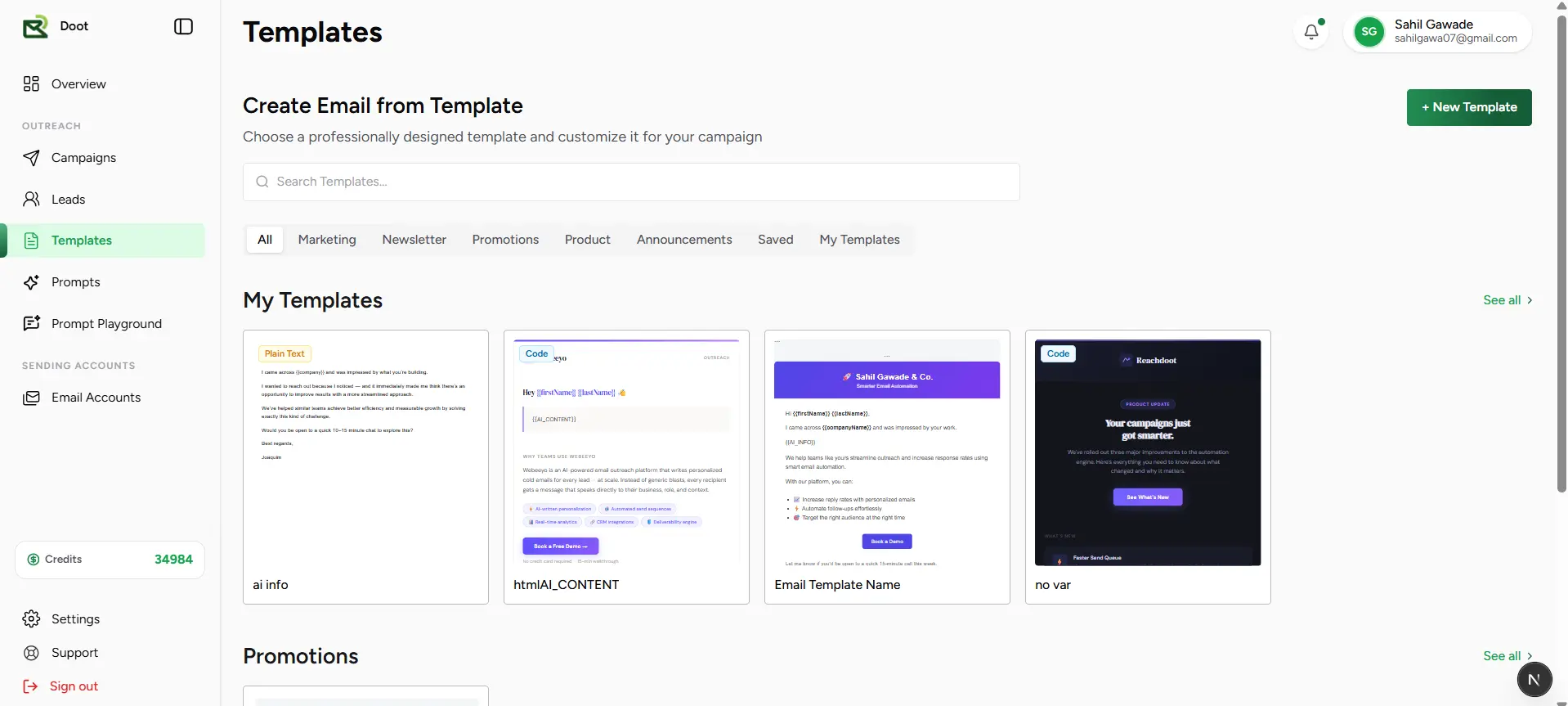
Search Templates
Find any template instantly by searching names and content across the full library — no scrolling through categories needed.
Category-Based Organization
Templates are organized into focused categories — Marketing, Newsletter, Promotions, Product, and Announcements — making discovery fast even as your library grows.
Saved Templates
Browse the public template library and save standout designs to your personal collection for quick reuse across future campaigns.
My Templates
Every template you build lives here — your personal creative library of custom, campaign-ready email designs, always at hand.
Generate with AI
Skip the blank page — use AI-powered content generation to build polished, campaign-ready email templates in seconds.
Template Preview
See exactly how a template looks before adding it to a campaign — verify layout, content, and formatting without launching anything.
Campaign Integration
Select any saved template directly during campaign setup to instantly populate your email content and keep creation fast.
Available Template Categories
| Field | What it means |
|---|---|
| Marketing | Templates built for outbound lead generation, personalized outreach, and direct-response engagement campaigns. |
| Newsletter | Templates designed for recurring updates, educational content, and ongoing audience communications. |
| Promotions | Templates crafted for offers, limited-time discounts, special events, and promotional announcements. |
| Product | Templates for launching new features, announcing product updates, and sharing release highlights. |
| Announcements | Templates for company news, milestones, policy changes, and other important notifications. |
| Saved | Public templates you've saved to your personal collection — ready to use or customize at any time. |
| My Templates | Custom templates you've built and own — your reusable library, exactly as you designed it. |
Why use templates?
Templates
Create a New Template
Every campaign starts with content — and templates are the fastest way to get there. Build reusable email designs you can deploy across campaigns without starting over each time. Choose the editor that fits your workflow, give the template a name, and start creating. When you're done, it's saved to your library and ready to use anywhere.
Name your template, choose your preferred editor, and start building — your design is saved to your library the moment you're done.
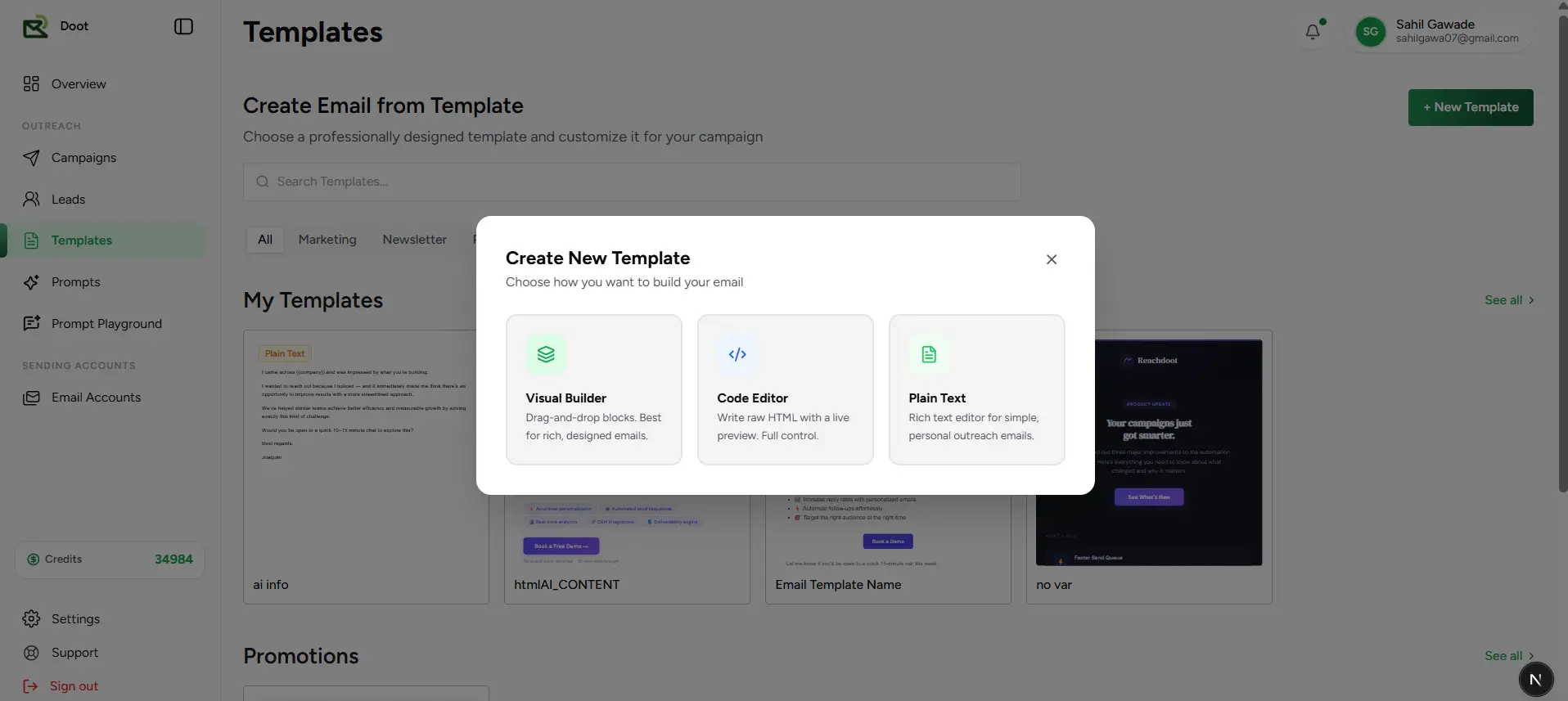
Template creation workflow
Navigate to Templates
Open the Templates page from the main navigation to access your template library and all creation tools.
Create a template
Click Create Template to open the setup flow and begin building a new reusable email design.
Choose an editor
Pick the editor that matches your style — Visual Builder for drag-and-drop design, Plain Text for fast writing, or Code Editor for full HTML control.
Enter template details
Give your template a clear, recognizable name so it's easy to find when building campaigns.
Start designing
Build your email using the selected editor. When you're satisfied with the content and layout, save it to your library.
Visual Builder
Design polished, professional email layouts visually — drag, drop, and customize components without writing a single line of code.
Plain Text Editor
Write concise, conversion-focused emails with formatting controls, AI assistance, and tone options for fast, personal outreach.
Code Editor
Build fully custom email templates in HTML with complete control over structure, styling, and responsive behavior.
Choose the right editor
AI-assisted content creation
Templates
Visual Template Builder
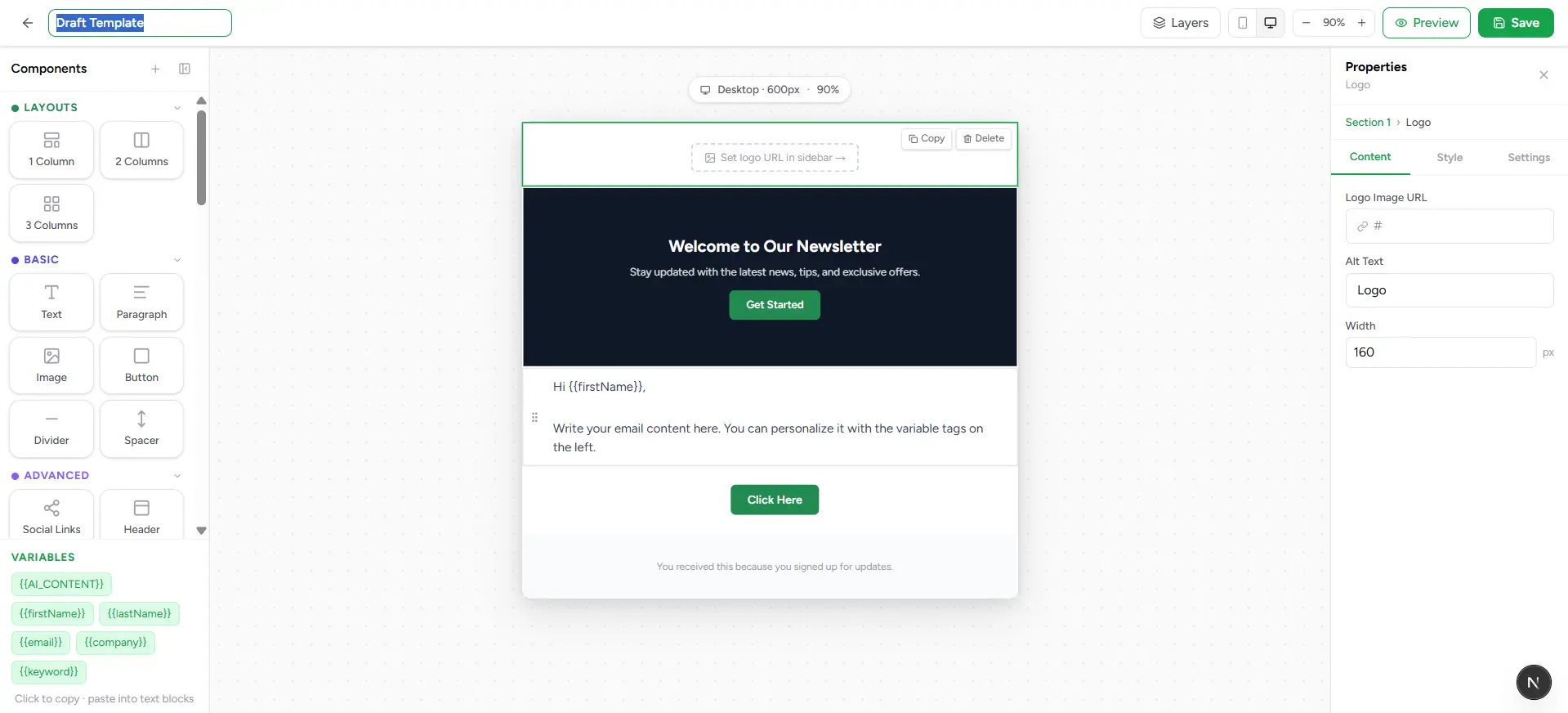
The Visual Builder is the fastest way to create polished, professional email templates without writing code. Drag components onto the canvas, configure each element with precision using the properties panel, insert personalization variables, and preview the final result in real time — all in one interface, with no coding required.
A three-panel interface — component library on the left, design canvas in the center, and element properties on the right — everything needed to build professional emails visually.
How the Visual Builder works
Open Visual Builder
Select Visual Builder when creating a new template to open the drag-and-drop design interface.
Drag components
Choose from layouts, text blocks, images, buttons, and other elements in the left panel and drag them into your canvas.
Customize content
Click any element to edit its text, styling, colors, spacing, and links using the properties panel on the right.
Use variables
Insert personalization variables like {{firstName}} or {{company}} to tailor each email to its recipient automatically.
Preview & save
Check the final design in real-time preview, then save the template to your library for use across campaigns.
Components Panel
A full library of layouts, text blocks, images, buttons, dividers, and variables — everything you need to build a complete email.
Canvas
The central design workspace where you assemble, rearrange, and visually compose your email layout in real time.
Properties Panel
Fine-tune any selected element — adjust text, colors, spacing, padding, links, and alignment with precise visual controls.
Drag-and-drop flexibility
Real-time preview
Templates
Code Template Editor
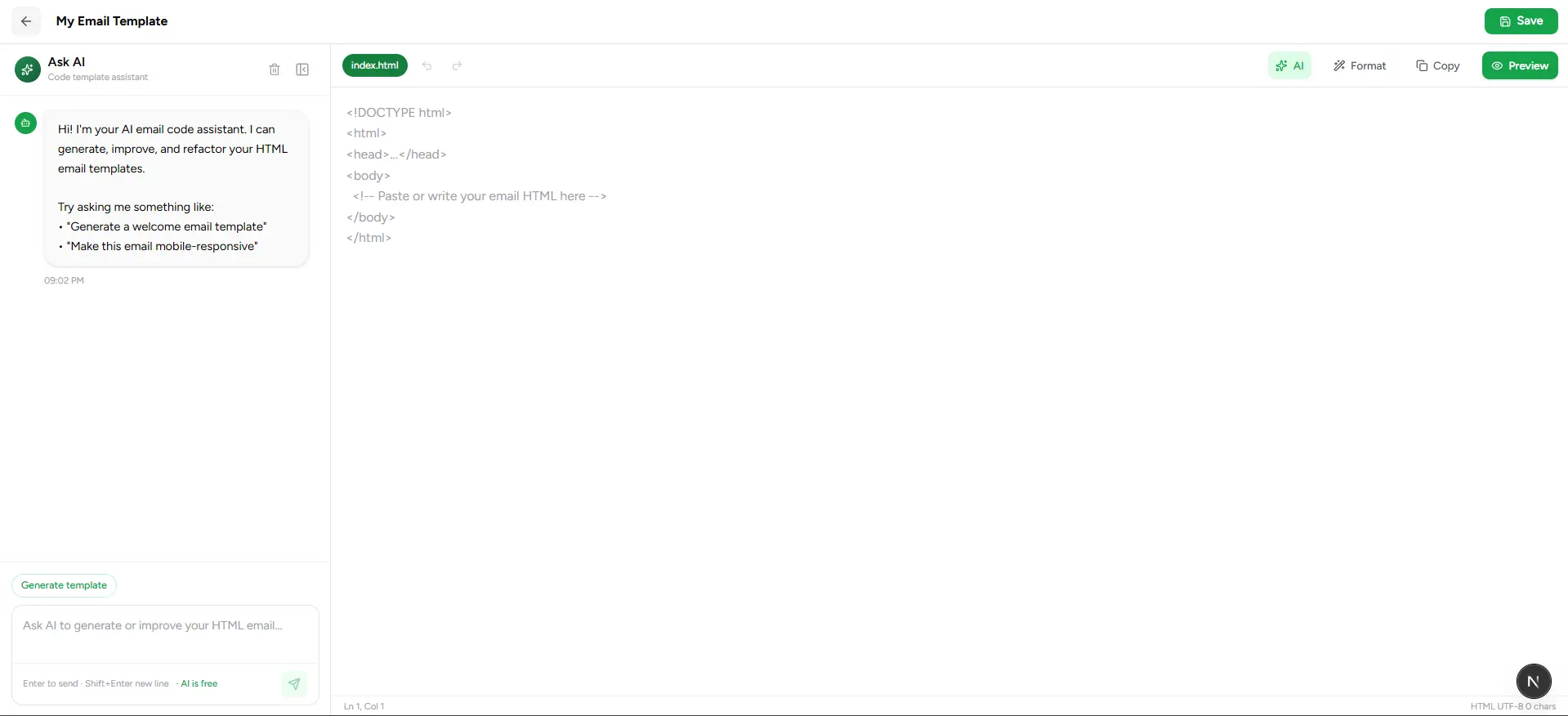
The Code Editor gives you complete control over your email template — write raw HTML, apply inline styles, and structure every element exactly as intended. A built-in AI assistant accelerates development by generating and refining code from natural language prompts, so you get the precision of custom HTML without the usual time cost.
Three-panel layout — AI assistant on the left for generating and improving code, the HTML editor in the center for full control, and the action toolbar for formatting, preview, and save.
How the Code Editor works
Open Code Editor
Select Code Editor when creating a template to launch the HTML development environment.
Write or paste HTML
Build your email structure in the central editor using standard HTML and inline CSS — paste existing code or start from scratch.
Use AI assistant
Ask the AI panel to generate a full template, improve existing code, or refactor a section using a plain language prompt.
Format & refine
Use the Format action to auto-clean and align your HTML for better readability — especially useful after AI-generated code.
Preview & save
Render the email in the live preview to confirm it looks exactly right, then save to your template library.
AI Assistant Panel
Generate complete email templates, improve existing code, or refactor sections using plain language — faster than writing from scratch.
Code Editor
The central HTML workspace — write, paste, and edit email markup with full control over every tag, style, and attribute.
Action Toolbar
Quick actions for AI generation, code formatting, HTML copy, live preview, and saving — everything within reach without leaving the editor.
Developer-friendly editing
Faster template creation
Templates
Plain Text Email Editor
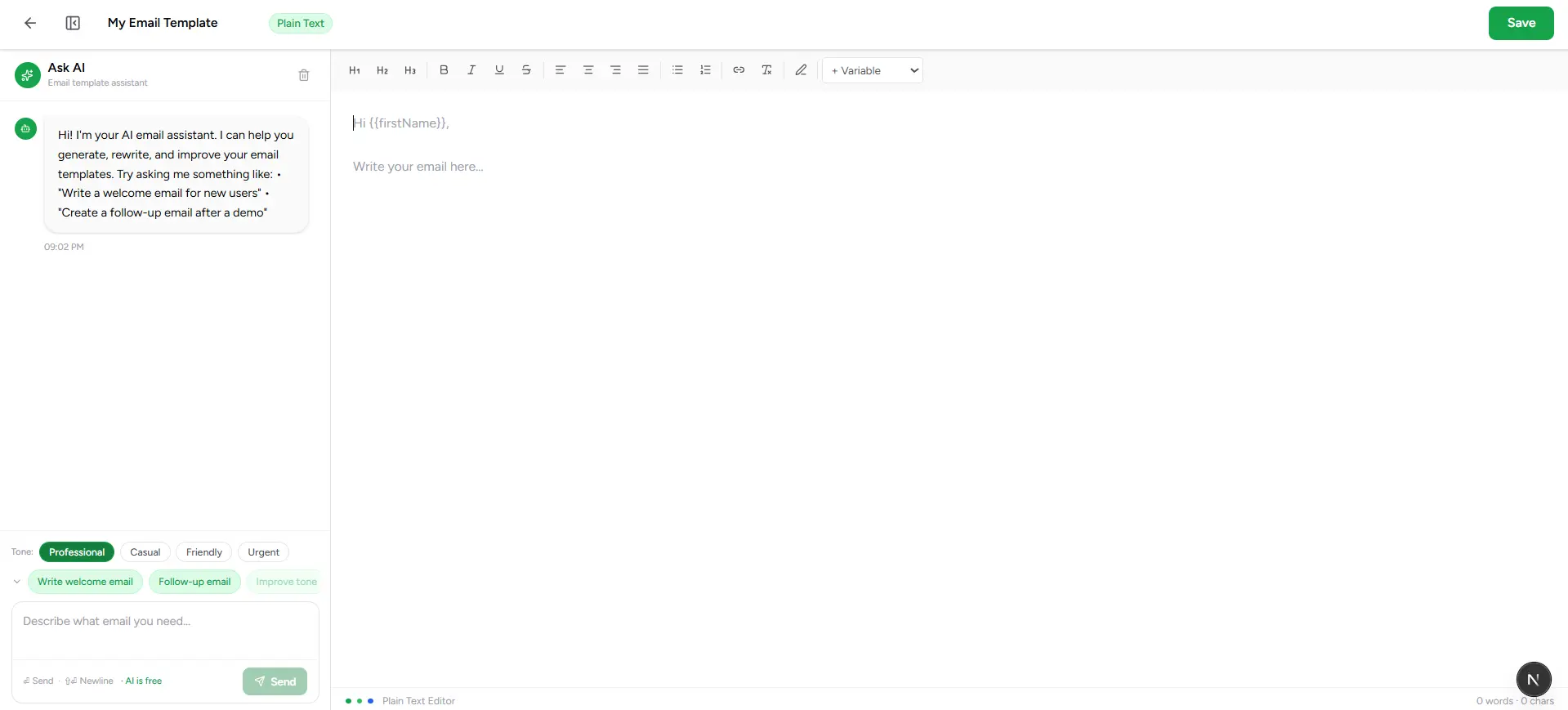
The Plain Text Editor is designed for fast, personal email content that reads like a real conversation. Write with rich-text formatting, insert personalization variables, choose a tone that fits the message, and call on AI assistance whenever you need a first draft, a rewrite, or a quick improvement — all from a clean, distraction-free interface.
AI assistant panel on the left, a rich text editing area in the center with a full formatting toolbar, and tone controls with AI quick-action prompts on the right — everything needed to write great emails quickly.
How the Plain Text Editor works
Open Plain Text Editor
Select Plain Text Editor when creating a template for fast, text-first email composition.
Write your email
Use the central editor to compose your message with headings, bold, lists, and links to structure content clearly.
Use variables
Insert personalization variables like {{firstName}} to tailor each email to its recipient without manual editing.
Choose tone
Select a tone — Professional, Casual, Friendly, or Urgent — to keep the writing style consistent with your outreach goals.
Use AI assistance
Generate a complete draft, rewrite a section, or improve existing content using built-in AI prompts and quick actions.
AI Assistant Panel
Generate full email drafts, rewrite content, or improve tone and clarity using smart AI prompts tailored to email writing.
Plain Text Editor
A rich text workspace with full formatting support — headings, bold, italic, lists, alignment, links, and personalization variables.
Tone & Quick Actions
Set the writing tone and trigger AI quick actions like welcome emails, follow-ups, or content improvements with a single click.
Key Features
Rich text formatting
Format content with headings, bold, italic, lists, links, and alignment — structure that makes your message clear and easy to scan.
AI-powered writing
Generate a complete email from a brief description, or ask AI to rewrite, tighten, or improve any section of existing content.
Tone control
Switch between Professional, Casual, Friendly, and Urgent tones to match each email to the right moment and audience.
Quick templates
Use one-click prompts to generate welcome emails, follow-ups, cold outreach, or improvement suggestions — built-in starting points for common scenarios.
Variable support
Personalize every email with dynamic placeholders like {{firstName}} and {{company}} — populated automatically for each recipient at send time.
Simple but powerful
Best for quick communication
Prompts
Manage AI Prompts
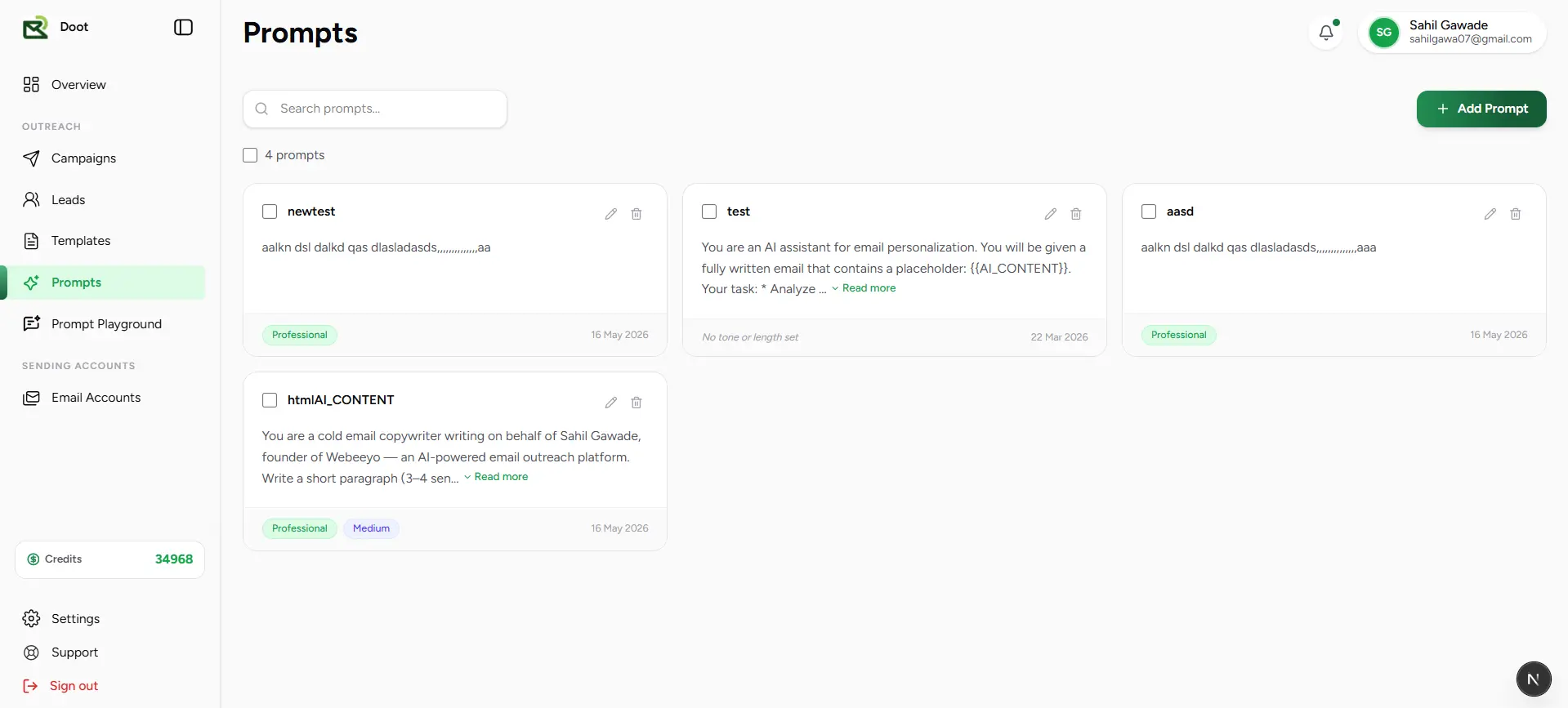
The Prompts page is your library for building, organizing, and managing the AI instructions that power your email content. A well-crafted prompt tells the AI exactly what to write, how to sound, and how to personalize each message — so every generated email reflects your brand and resonates with your audience. Save prompts once, reuse them across templates and campaigns, and test any combination in the Prompt Playground before it goes live.
Your prompt library — create, search, and manage reusable AI instructions that drive personalized email generation across every campaign.
Create Prompts
Build reusable AI instructions that define exactly how generated emails should be written, structured, and personalized for your audience.
Search Prompts
Find any saved prompt instantly by name — no scrolling through a growing library when you know what you need.
Reusable Instructions
Write a prompt once and apply it everywhere — consistent AI instructions across every template, campaign, and outreach workflow.
AI Content Generation
Turn your prompt into fully personalized, context-aware email content that sounds like it was written specifically for each recipient.
Tone Control
Set the communication style that fits your brand — Professional, Friendly, Formal, Casual, or beyond — and the AI writes to match.
Length Preferences
Tell the AI how long each generated email should be — Short for punchy outreach, Medium for balanced messaging, Long for detailed proposals.
How prompts work
Create a prompt
Write the instructions that define what the AI should generate — including purpose, structure, target audience, and desired outcome.
Configure preferences
Choose a tone and content length to shape how the AI writes — optional, but powerful for producing consistent, on-brand output.
Save the prompt
Add the prompt to your library to make it available across templates, campaigns, and the Prompt Playground.
Use in Prompt Playground
Test your prompt against a real template and sample lead data to see exactly what the AI will generate before launch.
Generate emails
Apply the prompt during campaign email generation to create personalized, on-brand content for every lead at scale.
Reusable AI instructions
Prompts
Create a Prompt
A prompt is the set of instructions you give the AI before it writes an email. Define the goal, structure, tone, and personalization approach — and the AI follows your lead, consistently, at scale. The more specific your instructions, the more targeted and on-brand the generated content becomes.
Define your prompt's name, write the AI instructions, set tone and length preferences, and save it to your library — ready to use across templates and campaigns.
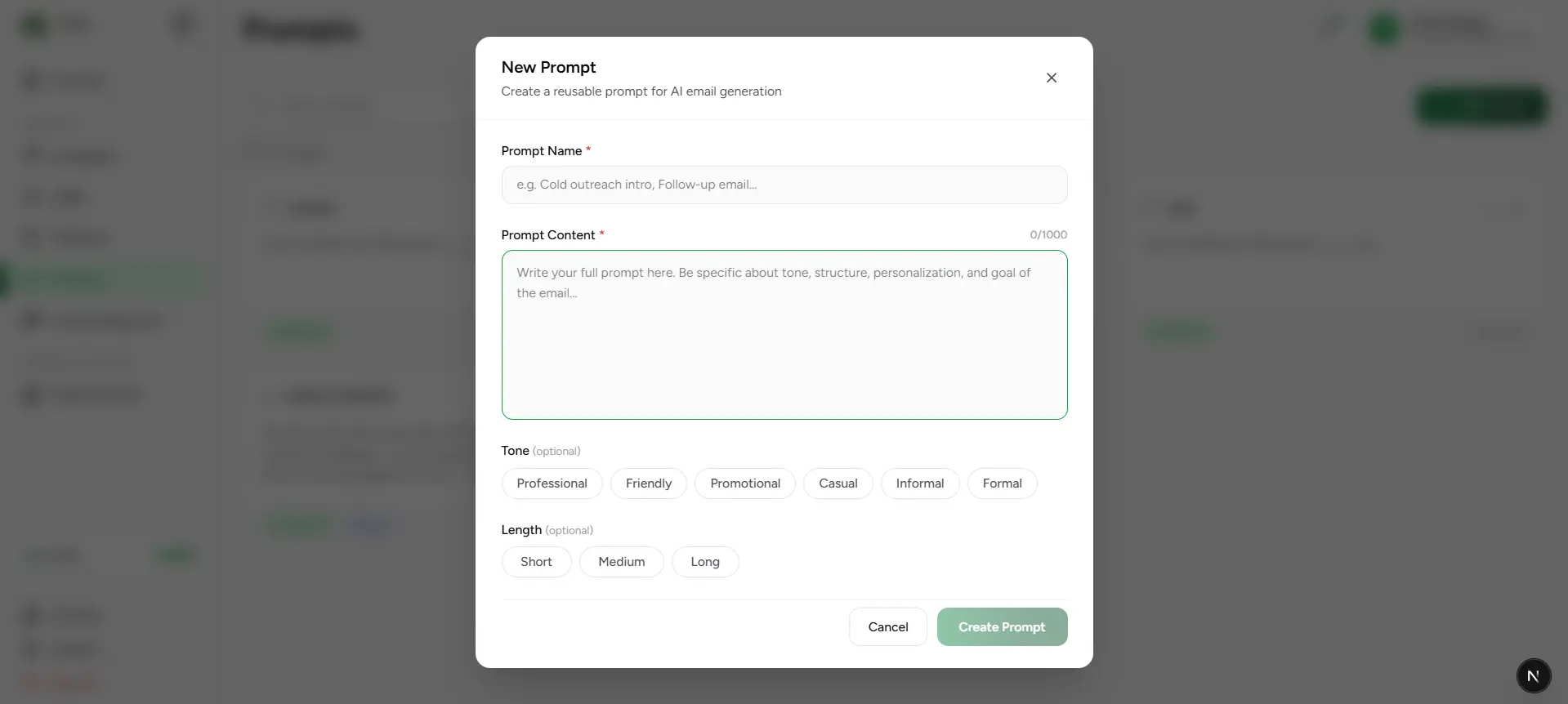
Prompt creation workflow
Open Prompts
Navigate to the Prompts page from the main navigation to access your saved prompt library.
Add Prompt
Click Add Prompt to open the creation dialog and start defining your new AI instruction set.
Enter a name
Give the prompt a clear, descriptive name that makes it easy to identify when selecting it in a campaign or the Playground.
Write prompt content
Define the instructions the AI should follow — include the email's goal, target audience, personalization approach, structure, and any specific requirements.
Configure options
Select a preferred tone and content length to guide how the AI shapes its output — optional, but recommended for consistent results.
Save Prompt
Save to your library to make the prompt immediately available for use in campaigns, templates, and the Prompt Playground.
Prompt Configuration Fields
| Field | What it means |
|---|---|
| Prompt Name | A clear, descriptive name used to identify and select the prompt across campaigns, templates, and the Playground. |
| Prompt Content | The core instructions for the AI — define the email's purpose, audience, personalization requirements, structure, and content goals. |
| Tone | Optional writing style that shapes how the AI sounds — choose from Professional, Friendly, Promotional, Casual, Informal, or Formal. |
| Length | Optional output length preference — Short for concise outreach, Medium for balanced messaging, or Long for in-depth communication. |
Custom Instructions
Write detailed AI instructions that define exactly how each generated email should be structured, personalized, and written.
Tone Selection
Choose the communication style that fits your brand and audience — and the AI writes every generated email to match.
Length Control
Set the ideal content length for your campaign type — quick and direct, or detailed and thorough.
Reusable Prompts
Save any prompt to your library and reuse it across multiple templates and campaigns without rewriting it each time.
Write clear instructions
Save and reuse
Prompts
Prompt Playground
Prompt Playground is the testing environment for your AI email workflow — before anything goes live. Select a saved template, choose a prompt, fill in sample lead data, and generate a full email preview using the AI model of your choice. It's the fastest way to validate that your prompts, templates, and variables are working together exactly as intended.
Select a template, pick a prompt, fill in sample variables, choose a tone and model, then generate a full personalized email preview — all before a single real email is sent.
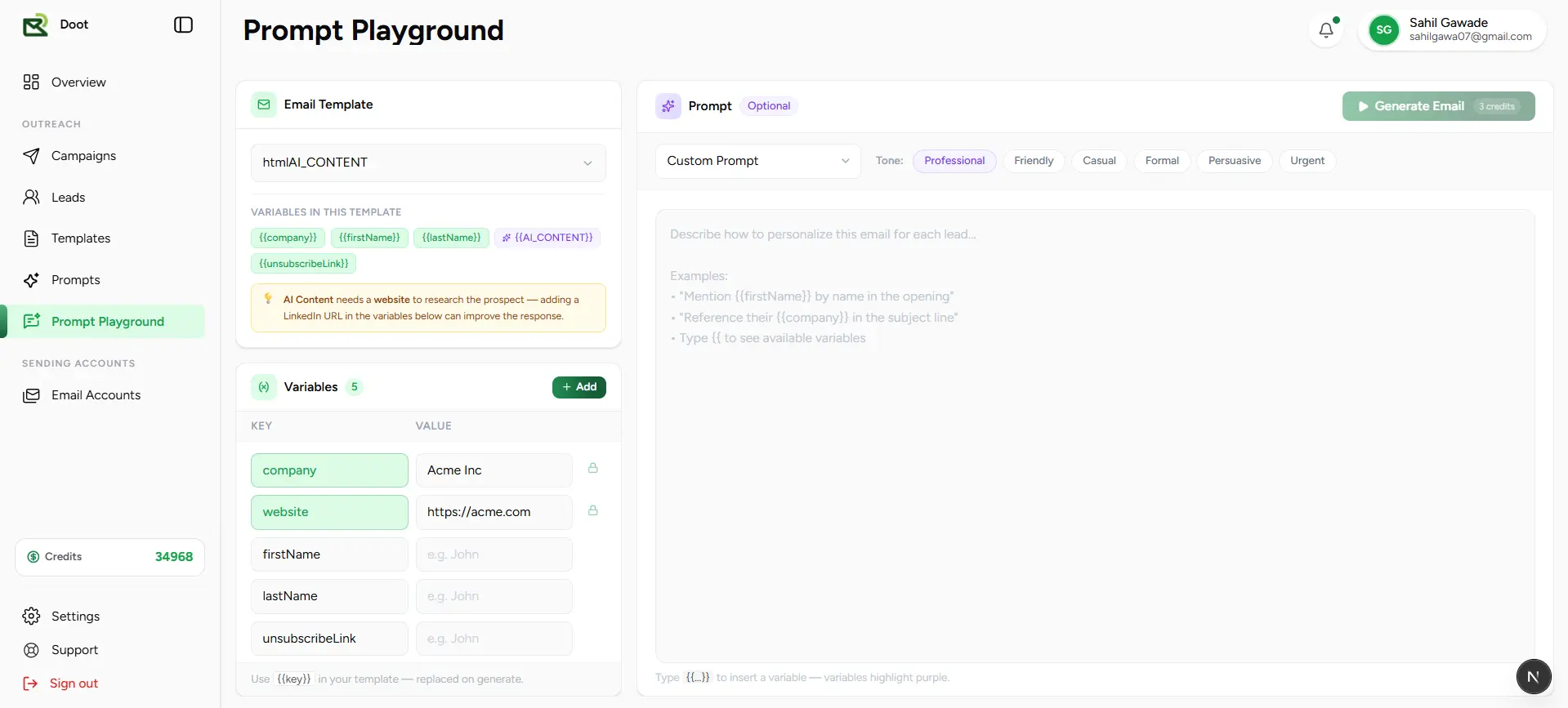
How Prompt Playground works
Select an email template
Choose a saved email template that provides the structure, layout, and personalization variables for the generated email.
Review available variables
See all variables detected in the selected template and understand what sample data you'll need to provide for an accurate preview.
Choose a prompt
Pick the saved prompt whose instructions the AI should follow when generating content for this template.
Configure tone
Select the communication style — Professional, Friendly, Casual, Formal, Persuasive, or Urgent — to shape the voice of the output.
Provide variable values
Enter sample values for variables like name, company, website, industry, or job title to simulate a real recipient.
Generate email
Run the generation to see exactly what the AI produces using your template, prompt, tone, and lead data — before it reaches any inbox.
Playground Components
Template Panel
Select a saved email template and review all the personalization variables it contains — the structural foundation for every generated email.
Prompt Editor
Choose a saved prompt and review its instructions — the AI follows these when generating content for the selected template.
Variables Panel
Enter sample values for each personalization variable to simulate a real lead — so the preview reflects what recipients will actually receive.
Email Template Selection
Choose any saved template as the structural canvas — the Playground generates content to fit its layout and personalization slots.
Template Variables
See every variable used in the selected template so you know exactly what sample data to provide for an accurate preview.
Saved Prompt Selection
Pull any prompt from your library and apply it to the generation — test different instructions against the same template to compare results.
AI Email Generation
Generate a complete, personalized email using your chosen template, prompt, tone, and sample lead data — a realistic preview of real campaign output.
Tone Control
Experiment with different communication styles in the Playground to find the tone that gets the best results before committing to it in a campaign.
Live Preview
See the fully rendered, personalized email before it ever reaches a real inbox — validate content, tone, length, and personalization in one view.
Available Tone Options
| Field | What it means |
|---|---|
| Professional | Business-focused and polished — well-suited for B2B outreach, sales introductions, and formal communication. |
| Friendly | Warm, approachable, and personable — ideal for building rapport and encouraging genuine two-way engagement. |
| Casual | Relaxed and conversational — best for informal introductions and audiences where a low-pressure tone works best. |
| Formal | Structured and precise with a polished, authoritative register — appropriate for enterprise audiences and compliance-sensitive contexts. |
| Persuasive | Action-oriented and value-focused — designed to move readers toward a decision by emphasizing benefits and outcomes. |
| Urgent | Creates a compelling sense of priority — effective for time-sensitive offers, follow-ups, and high-stakes outreach. |
AI Model Selection
The Playground lets you choose the AI model used for generation — giving you direct control over the trade-off between output quality, reasoning depth, and credit cost. Test with faster, lighter models while refining your prompts, then switch to a premium model when you're ready to generate production-quality emails.
Select the AI model that matches your generation goals — from fast and cost-efficient to advanced reasoning and premium-quality output.
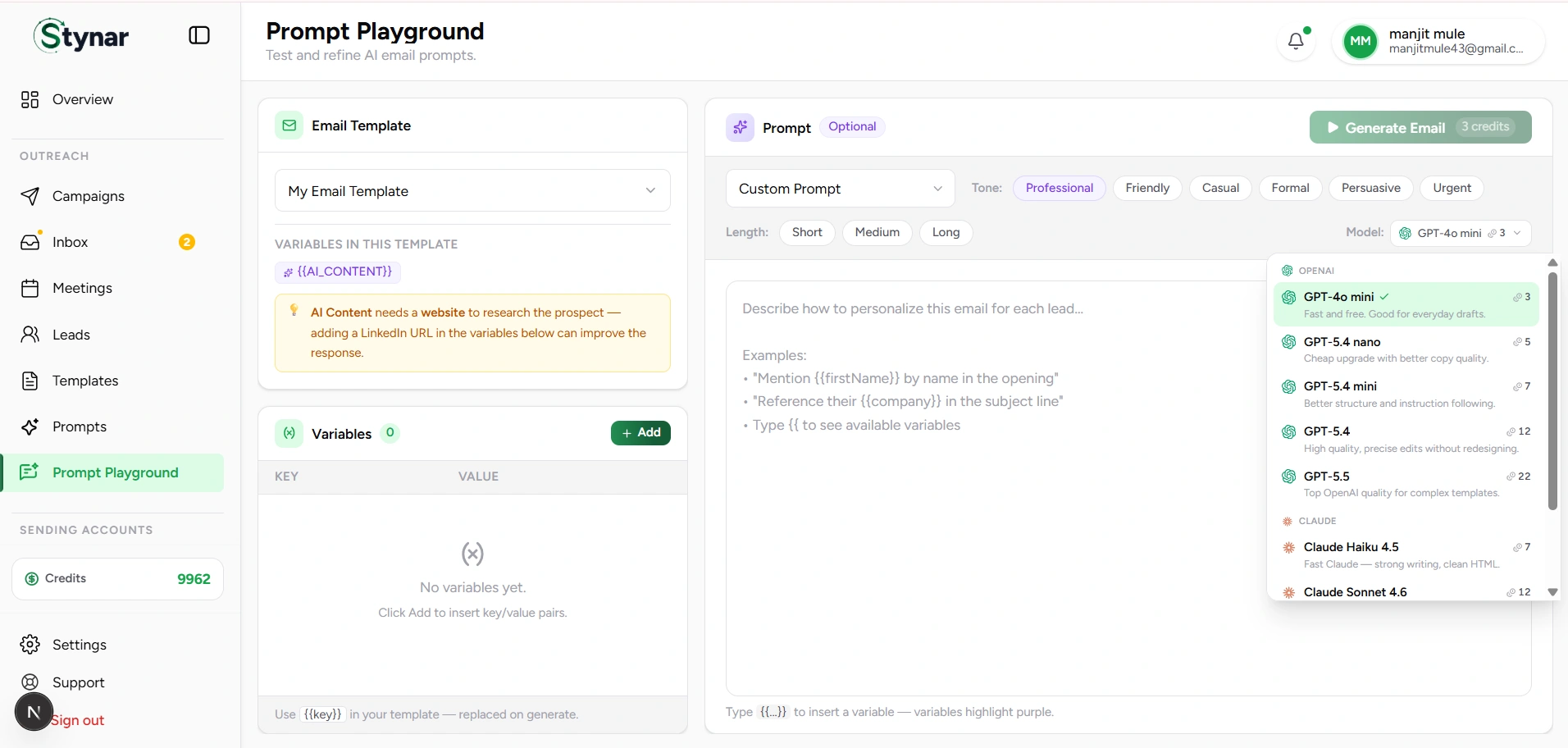
Multiple AI Providers
Choose from OpenAI and Anthropic models — test different providers to find the one that produces the best results for your outreach style.
Credit-Based Usage
Each model carries a different credit cost based on its capability — so you can balance quality against budget depending on the campaign.
Quality vs Cost
Advanced models deliver deeper personalization and stronger reasoning. Lighter models are faster and more economical for testing and iteration.
Email Optimization
Pick the model that fits the campaign — lighter models for high-volume straightforward sends, premium models for complex, high-value outreach.
| Field | What it means |
|---|---|
| GPT-4o mini | Fast and credit-efficient — ideal for testing prompts, prototyping templates, and straightforward email generation. |
| GPT-5.4 mini | Improved reasoning and writing quality at low credit cost — a step up from GPT-4o mini for more polished output. |
| GPT-5.4 | Well-rounded model with strong personalization and email quality — a solid default for most production campaigns. |
| GPT-5.5 | Premium OpenAI model — delivers advanced personalization, deep reasoning, and the highest-quality email content for demanding outreach. |
| Claude Haiku 4.5 | Anthropic's fastest Claude model — optimized for lightweight generation tasks where speed and efficiency take priority. |
| Claude Sonnet 4.6 | Balanced and capable — strong writing quality, intelligent content generation, and reliable personalization for most campaign types. |
| Claude Opus 4.8 | Anthropic's most advanced model — built for complex reasoning, nuanced personalization, and premium-quality email content. |
Model recommendations
Variable Testing
The Variables panel lets you simulate real recipient data before generating a preview. Enter sample values for first name, last name, company, website, industry, job title, LinkedIn details, and any other custom variables referenced in your template — so the generated email reflects exactly what a real lead will receive.
Test before sending
Preview real-world results
Analytics & Admin
Campaign Analytics
Campaign Analytics gives you a complete picture of how each campaign is performing — from high-level delivery metrics to individual recipient behavior. Access it by selecting any campaign from the Campaigns table. Monitor email delivery, track opens and follow-up progress, review campaign configuration, inspect your automation sequence, and drill into per-lead activity throughout the entire campaign lifecycle — all from a single, unified dashboard.
A unified analytics view — performance metrics, delivery trends, audience engagement, follow-up sequence visualization, and recipient-level tracking all in one place.
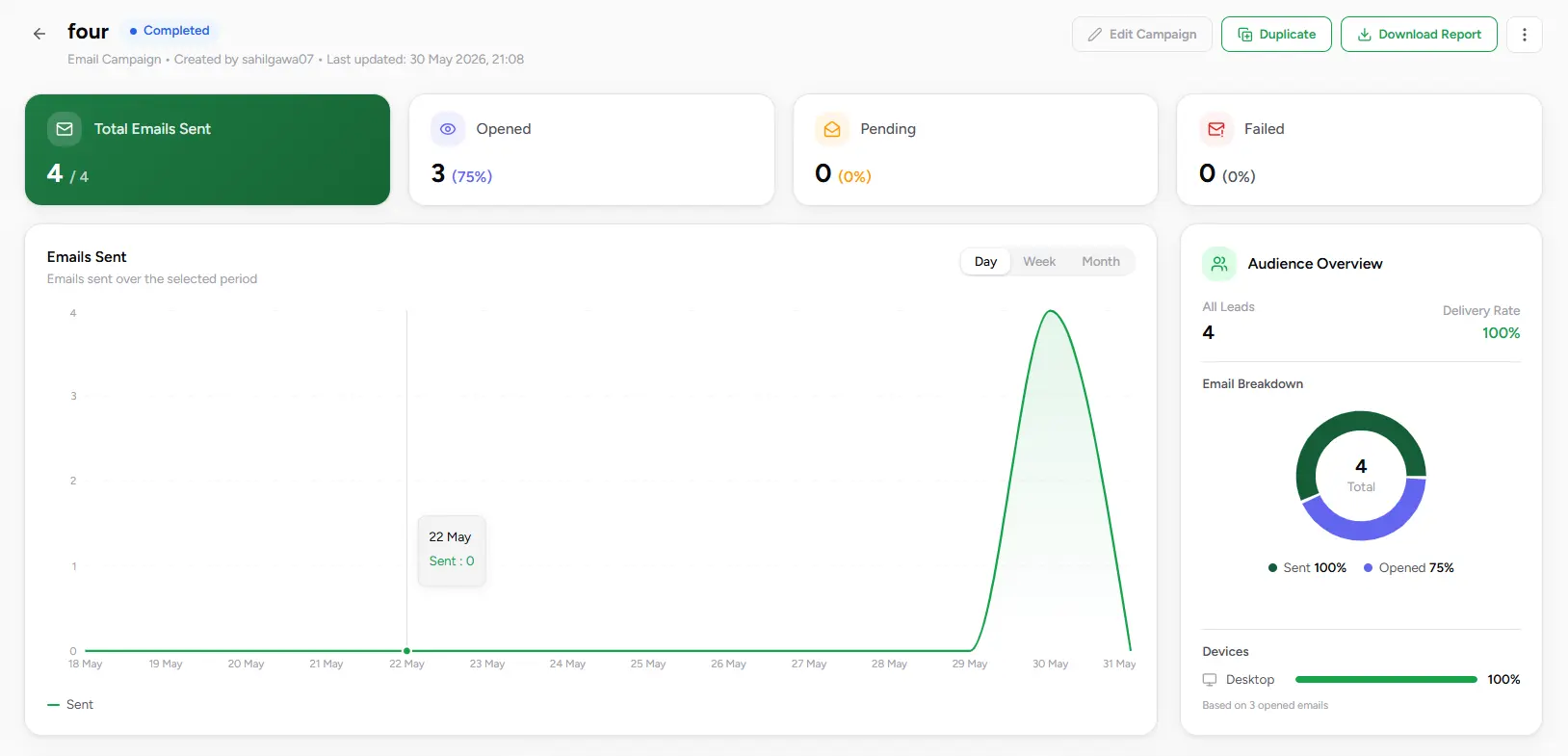
Performance Metrics
Track total emails sent, opens, pending deliveries, and failures at a glance — with live percentage rates alongside every count.
Delivery Trends
Visualize sending activity across Day, Week, and Month time ranges to understand delivery pacing and spot where engagement peaks occur.
Audience Insights
Review audience size, delivery rate, open rate, and device breakdown — the engagement signals that show how well the campaign is resonating.
Email Preview
See the exact email template the campaign is sending — verify content, personalization variables, and formatting without leaving the analytics view.
Campaign Configuration
Review sender details, subject line, scheduling settings, and launch information — full context for every decision behind the campaign.
Follow-up Sequence
Inspect the complete automation workflow — triggers, delays, conditions, AI actions, and stop points — so you can audit every follow-up path at a glance.
Campaign Overview Metrics
| Field | What it means |
|---|---|
| Total Emails Sent | Total number of emails successfully dispatched by the campaign — shown alongside total audience size for immediate context. |
| Opened | Number and percentage of recipients who opened at least one campaign email — the primary measure of audience engagement. |
| Pending | Emails queued and waiting to be sent — contacts still within the scheduled delivery window. |
| Failed | Emails that could not be delivered — useful for identifying bounce issues, invalid addresses, or sender configuration problems. |
| Follow-ups | Per-recipient follow-up progress tracked in the Campaign Leads table — each lead shows an In Progress, Completed, or Stopped status indicating where they are in the automation sequence. |
Campaign Analytics Dashboard
Review campaign metrics
Check total sent, opened, pending, and failed email counts to get an immediate read on delivery health and engagement across the full audience.
Analyze delivery trends
Switch between Day, Week, and Month views on the send chart to understand delivery pacing, identify sending spikes, and spot gaps in activity.
Monitor audience engagement
Review delivery rate, open rate, audience size, and device breakdown to measure how effectively the campaign is reaching and engaging recipients.
Inspect email content and configuration
Use the Email Preview panel to verify the template being sent and review campaign details — sender, subject, schedule, and total leads — all in one view.
Review the follow-up sequence
Check the automation workflow panel to confirm that triggers, delays, conditions, and stop points are configured exactly as intended for every recipient.
Track and drill into recipient activity
Check the Campaign Leads table for per-lead delivery status, open timestamps, and follow-up progress. Click any row to open the Lead Activity Drawer for a full view of that recipient's engagement and conversation history.
Review the active email template alongside sender information, campaign configuration, and scheduling settings — everything the campaign is built on, in one panel.
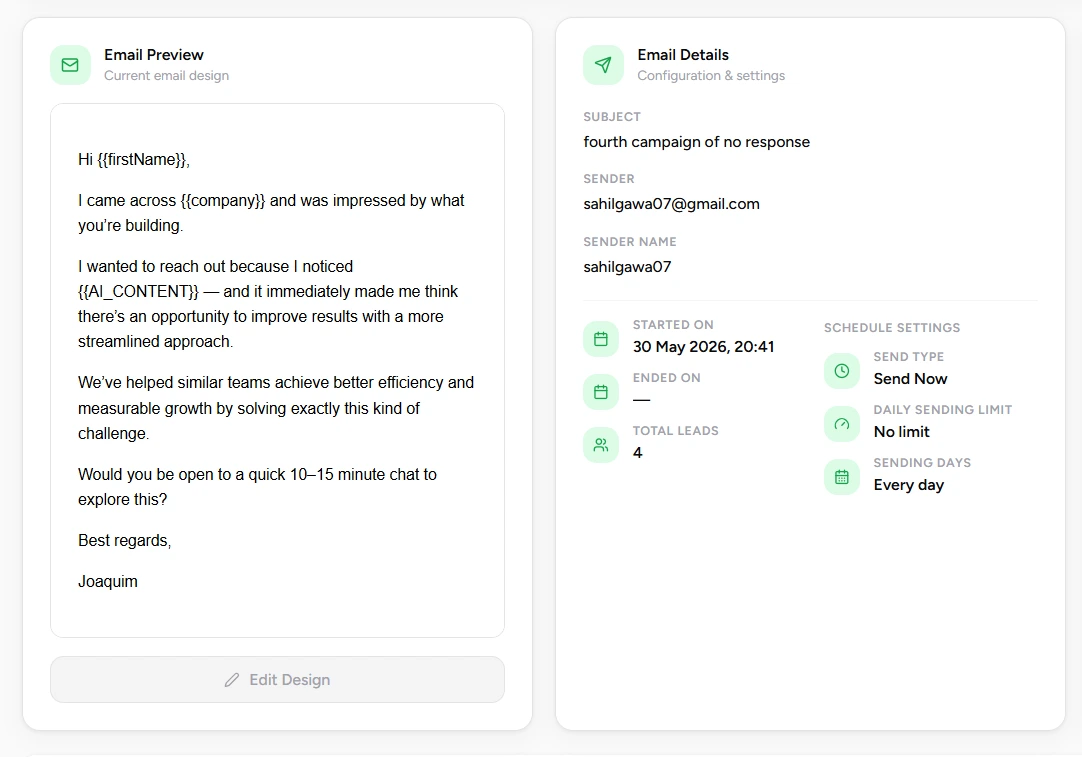
Email Preview
The Email Preview panel displays the email template currently associated with the campaign. Use it to verify that content, personalization variables, formatting, and messaging are exactly as intended — without navigating away from the analytics view.
Campaign Details
| Field | What it means |
|---|---|
| Subject | The email subject line used by the campaign — visible to every recipient in their inbox. |
| Sender | The email account used to send campaign messages — the From address recipients see. |
| Sender Name | The display name shown alongside the sender address in the recipient's inbox. |
| Started On | The date and time the campaign began sending. |
| Ended On | The date and time the campaign completed sending, if it has finished. |
| Total Leads | The total number of recipients included in the campaign audience. |
| Send Type | Defines whether emails are sent immediately upon launch or scheduled for a future date and time. |
| Daily Sending Limit | The maximum number of emails the campaign is permitted to send per day. |
| Sending Days | The days of the week on which campaign emails are allowed to be sent. |
Audience Overview
Delivery Rate
Percentage of campaign emails successfully delivered to recipients — a core health signal for sender reputation and list quality.
Open Rate
Percentage of delivered emails that were opened — reflects subject line effectiveness and overall audience engagement.
Device Insights
Breakdown of email opens by device type — showing how recipients engage across desktop and mobile environments.
A visual flowchart of the campaign's automation — triggers, delays, email actions, conditions, and stop points displayed together so the full recipient journey is easy to audit.
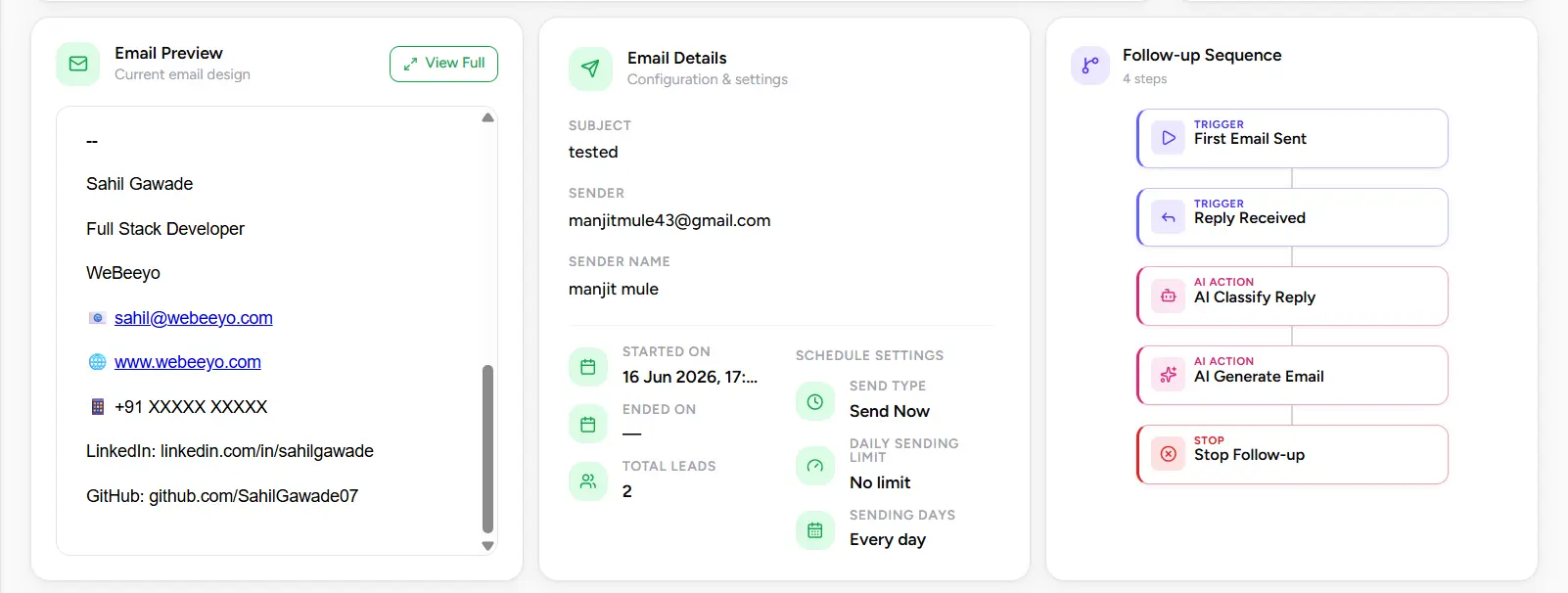
Follow-up Sequence
The Follow-up Sequence panel visualizes the complete automation workflow configured for the campaign. It displays triggers, delays, email actions, conditions, AI-powered steps, and stop conditions in a flowchart format — so you can verify the full follow-up journey for every recipient at a glance.
Email Actions
View all automated emails configured within the follow-up sequence — including the initial outreach and every subsequent step.
Triggers
Review the events that initiate follow-up steps — including campaign start, email opens, replies, clicks, and no-response conditions.
Delays
See the waiting periods between follow-up steps — verify that spacing is set correctly before each next action fires.
Conditional Logic
Inspect YES and NO branch paths built from engagement-based conditions — showing exactly how the sequence responds to recipient behavior.
AI Actions
Review AI-powered steps in the sequence — including personalization, classification, and content generation triggers.
Automation Flow
Trace the complete recipient journey from first send to final outcome — every step, branch, and stop condition in one visual view.
Audit your automation at a glance
Per-recipient delivery tracking — status, follow-up progress, open timestamps, scheduled send times, and sent dates for every lead in the campaign.
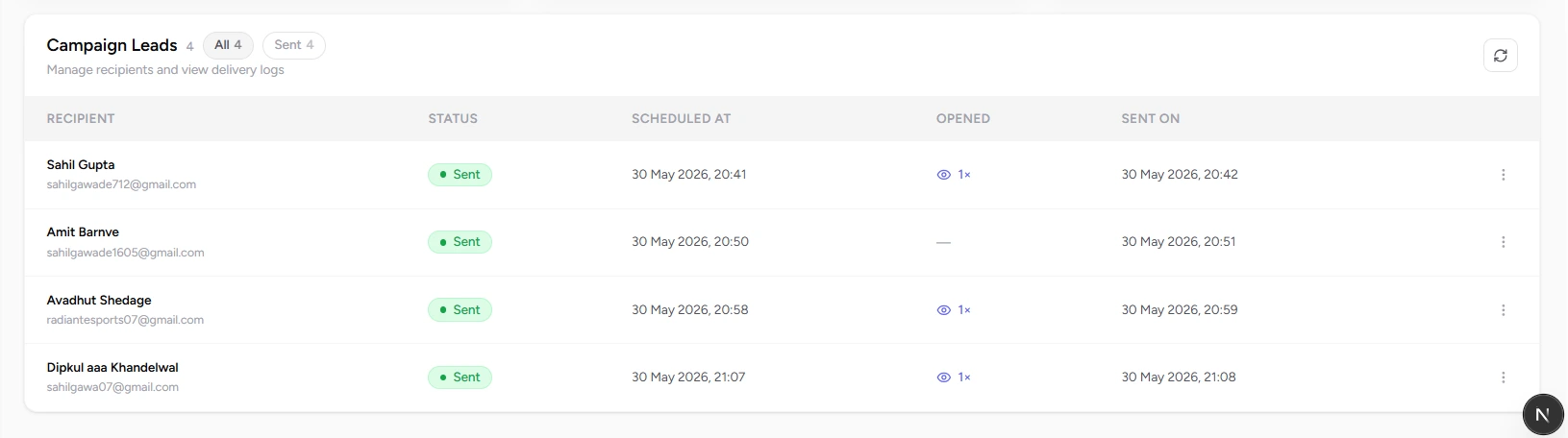
Campaign Leads
The Campaign Leads table provides recipient-level tracking for every lead in the campaign. Monitor delivery status, open timestamps, follow-up progress, and scheduled send times for each contact. Click any row to open the Lead Activity Drawer — a detailed panel showing that recipient's engagement stats, complete email thread, and follow-up history.
| Field | What it means |
|---|---|
| Recipient | The lead's name and email address as they appear in the campaign audience. |
| Status | Current delivery status for the lead — Sent, Pending, Failed, or Skipped. |
| Follow-up | The lead's current position within the follow-up sequence — In Progress, Completed, or Stopped. |
| Scheduled At | The date and time the next email is scheduled for delivery to this recipient. |
| Opened | The date and time the recipient opened the campaign email, if applicable. |
| Sent On | The actual date and time the email was delivered to this recipient. |
| Last Activity | The most recent recipient interaction recorded — including opens, replies, or clicks. |
Per-recipient follow-up tracking
Click any lead in the Campaign Leads table to open the Lead Activity Drawer — a full view of that recipient's engagement stats, conversation history, follow-up activity, and direct Gmail access.
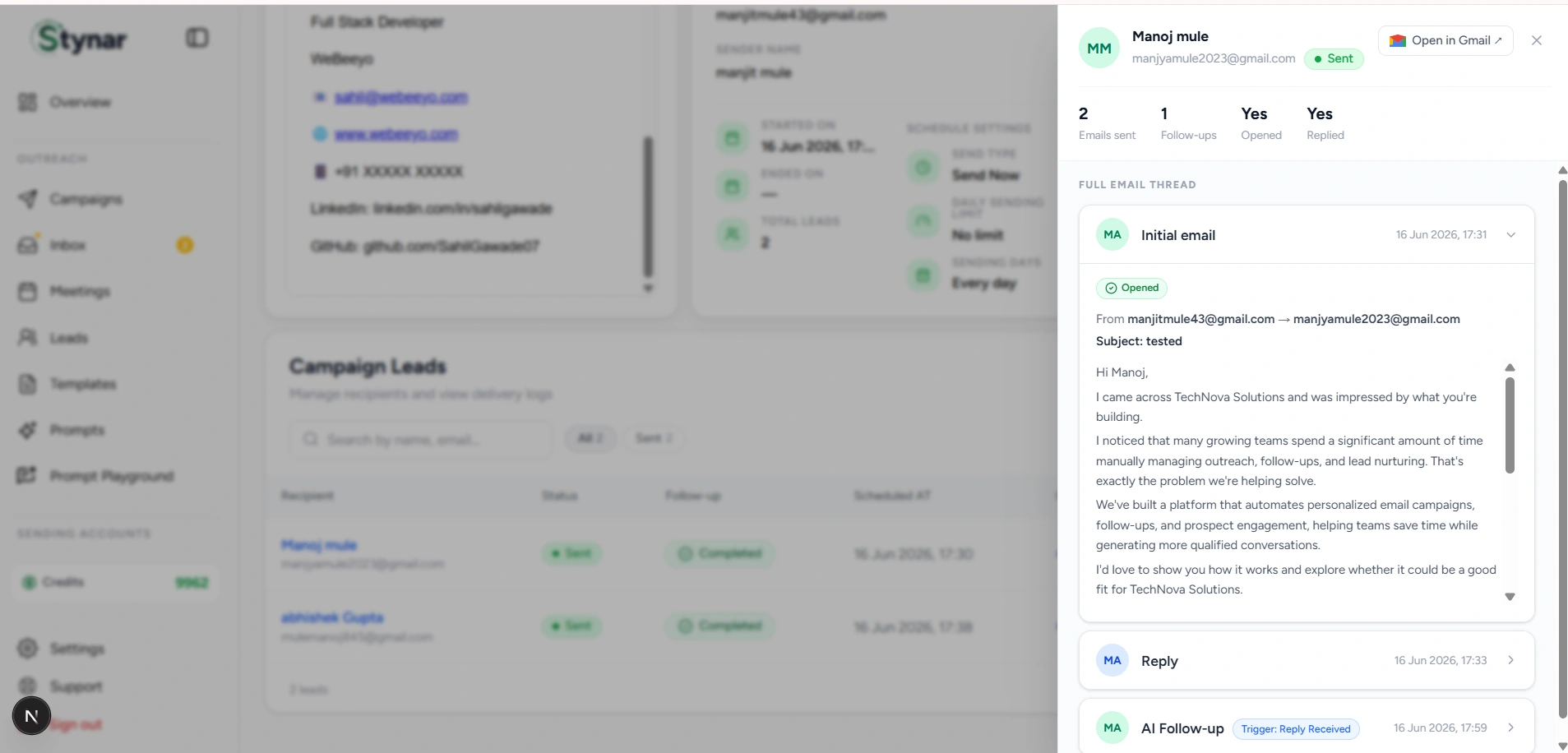
Lead Activity Drawer
Clicking any row in the Campaign Leads table opens the Lead Activity Drawer for that recipient. This panel consolidates everything that has happened with that lead in one place — delivery status, engagement stats, the complete email thread, follow-up activity, and a direct link to open the conversation in Gmail.
Recipient Summary
See the lead's name, email, delivery status, total emails sent, follow-up count, and whether they've opened or replied — all at the top of the drawer.
Full Email Thread
Read the complete chronological conversation — initial email, any replies from the lead, and all automated follow-ups in the order they occurred.
Follow-up Tracking
See each AI-generated follow-up alongside the trigger condition that fired it — so you understand exactly why and when each step was sent to this recipient.
Open in Gmail
Launch the original conversation directly in Gmail to review the full mailbox thread or continue communication outside the platform.
Recipient Summary
| Field | What it means |
|---|---|
| Emails Sent | Total number of campaign emails delivered to this recipient, including the initial email and all follow-up steps. |
| Follow-ups | Number of automated follow-up emails sent to this recipient within the campaign sequence. |
| Opened | Indicates whether the recipient opened one or more campaign emails. |
| Replied | Indicates whether the recipient sent a reply to any campaign email. |
| Status | The current delivery state for this recipient — Sent, Pending, Failed, or Skipped. |
Email Thread Timeline
The Full Email Thread section shows the complete chronological history of interactions with the recipient. Each entry can be expanded to review the full email content and the engagement activity recorded for that message.
| Field | What it means |
|---|---|
| Initial Email | The first campaign email sent to the recipient — the starting point of the conversation. |
| Reply | A response received from the recipient — displayed in the thread in the order it arrived. |
| AI Follow-up | An automated follow-up email generated and sent by the campaign's workflow automation. |
| Trigger | The event that caused the follow-up to fire — such as Reply Received, Email Opened, or No Response after a set delay. |
| Timestamp | The exact date and time each message was sent or received. |
Complete conversation history
Open directly in Gmail
Everything in one view
Track engagement in real time
Analysis & Admin
Manage profile, signatures, notifications, billing, and security
Profile & Settings is your account control center — everything that affects how Stynar represents you, how it communicates, and how it behaves is managed here. Update your personal details, strengthen account security, configure email signatures, control notification preferences, and monitor your plan and credit usage. All changes are applied immediately and persist across every session and device.
Profile
Update your name, email, phone number, job title, company, timezone, website, and address — keeping your account information accurate and complete.
Security
Change your password and enable Two-Factor Authentication (2FA) for an additional layer of protection on your account.
Email Signatures
Create and manage email signatures that are automatically appended to every outgoing campaign email — no campaign editing required.
Notifications
Toggle email notifications, weekly campaign reports, and system alerts independently — stay informed on exactly what matters to you.
Theme Preference
Choose between Dark, Light, or System appearance modes to match your working environment.
Billing
View your current plan, track credit balance and monthly email usage against your plan limits, and manage your subscription.
Danger Zone
Permanently delete your account and all associated data — a protected, irreversible action that requires email confirmation before it proceeds.
Basic Information
| Field | What it means |
|---|---|
| Full Name | Your display name as it appears across the platform. |
| Your registered account email address — shown with a verification checkmark when confirmed. | |
| Phone Number | Optional contact phone number associated with your account. |
| Job Title | Your role or position — used for profile context. |
| Company Name | The name of the organization your account is associated with. |
| Company Size | The size category of your company — used for account context. |
| Timezone | Your local timezone — used for scheduling and timestamp display across the platform. |
| Website URL | Your company or personal website URL. |
| Address | Optional physical address associated with your account. |
Security Settings
| Field | What it means |
|---|---|
| Change Password | Update your account password at any time. You will be prompted to enter your current password before setting a new one. |
| Two-Factor Authentication | Enable or disable 2FA for your account. When enabled, a second verification step is required at login — adding protection against unauthorized access. |
Billing & Subscription
| Field | What it means |
|---|---|
| Plan | Your current subscription tier — such as Starter, Pro, or Scale. Determines the limits that apply across campaigns, leads, and email volume. |
| Credits | Your remaining AI credit balance. Credits are consumed when AI generates personalized email content. The current balance is displayed alongside your total allocation. |
| Emails | Your monthly email sending allowance and a live progress bar showing how many emails have been sent versus how many remain in the current billing period. |
| Manage Plan | Opens the subscription management panel — upgrade your plan, increase limits, or purchase additional credits. |
Notification preferences
| Field | What it means |
|---|---|
| Email Notifications | Receive email updates about your account activity and campaign events — stay informed without logging in. |
| Campaign Reports | Get weekly campaign performance reports delivered by email — open rates, delivery stats, and key metrics summarized automatically. |
| System Alerts | Receive notifications about system updates and important platform events affecting your account. |
| Theme Preference | Set your preferred interface appearance — Dark, Light, or System (automatically follows your OS setting). |
Theme options
Saving preferences
Plan limits
Email signatures
Danger Zone
The Danger Zone contains irreversible account actions. Deleting your account permanently removes all associated data — campaigns, leads, templates, analytics, follow-up sequences, and settings. This action cannot be undone once confirmed.
| Field | What it means |
|---|---|
| Delete Account | Permanently removes your account and all associated data — campaigns, leads, templates, analytics history, follow-up sequences, and account settings. |
| Email Confirmation | You must type your registered email address into the confirmation field before the Delete Account button becomes active — preventing accidental deletion. |
| Permanent Action | Deletion cannot be reversed. Once confirmed, the account and all its data are gone — a new account must be created to use the platform again. |
| Access Removal | You are automatically signed out immediately after account deletion is confirmed and processed. |
Permanent deletion
Confirmation required
Analytics & Admin
Billing & Plans
Billing & Plans gives you complete visibility into your subscription, credit balance, and usage — all in one place. See exactly how much of your plan you've used this billing period, compare available tiers, manage or upgrade your subscription, and purchase credit top-up packs whenever you need more capacity. Credits power AI-personalized email generation and are available on every plan.
Your current plan, trial status, credits balance, and a live breakdown of usage across every plan limit — all visible at a glance from the Billing page.

Current Plan
See your active subscription tier, trial status, next billing date, and remaining credits balance at the top of the Billing page — always know where you stand.
Usage This Period
Track consumption across emails, AI emails, daily send limits, campaigns, mailboxes, leads, and templates — each shown as a live progress bar against your plan's allocation.
Credits Balance
Your AI credit balance is displayed prominently and updated in real time. Credits power AI-personalized email generation and are deducted per email sent to a real recipient.
Plan Comparison
Browse and compare Starter, Pro, and Scale plans side by side — with monthly or annual billing options. Annual billing saves roughly 20–23%, depending on plan.
Credit Top-Ups
Purchase additional credits on any plan in four pack sizes — no subscription upgrade required. Ideal for scaling a specific campaign without changing your tier.
Free Trial
New accounts include a 14-day free trial of the Starter plan. Your subscription activates automatically when the trial ends, or upgrade at any time to start immediately.
Usage This Period
The Usage This Period panel shows your current consumption against every limit included in your plan. Each metric is displayed as a live progress bar so you can spot which limits are approaching before they affect your campaigns.
| Field | What it means |
|---|---|
| Emails this month | Total emails sent in the current billing period against your monthly sending allowance — e.g., 2 / 3,000 on the Starter plan. |
| AI emails this month | AI-personalized emails generated and sent this period against your monthly AI email limit — e.g., 0 / 750 on the Starter plan. |
| Daily emails | Emails sent today against your daily sending cap — helps manage delivery pacing and protects sender reputation. |
| Campaigns | Active and total campaigns created against your plan's campaign limit — e.g., 3 / 10 on the Starter plan. |
| Mailboxes | Connected sender mailboxes against your plan's mailbox limit — e.g., 1 / 3 on the Starter plan. |
| Leads | Total contacts in your workspace against your plan's lead limit — e.g., 70 / 10,000 on the Starter plan. |
| Templates | Templates created in your workspace — some plans include an unlimited template allowance, shown as ∞. |
Available Plans
Stynar offers three paid tiers and an Enterprise option for teams with custom requirements. All plans include a 14-day free trial. Choose monthly or annual billing — annual plans save roughly 20–23%, depending on plan.
Compare Starter, Pro, and Scale plans side by side — with feature breakdowns, limits, and pricing shown for both monthly and annual billing.

Starter
3,000 credits/mo · 750 AI personalized emails · 3,000 emails/mo (100/day) · 3 mailboxes · 10,000 leads · 10 campaigns · 5 follow-up sequences · Replies inbox · AI Classify & Auto AI Reply · Gmail & Outlook OAuth · Email support.
Pro
10,000 credits/mo · 2,500 AI personalized emails · 10,000 emails/mo (350/day) · 8 mailboxes · 75,000 leads · Unlimited campaigns · Unlimited follow-up sequences · Replies inbox · AI Classify & Auto AI Reply · Gmail & Outlook OAuth · Email support (12 hr).
Scale
30,000 credits/mo · 7,500 AI personalized emails · 30,000 emails/mo (1,000/day) · 25 mailboxes · 250,000 leads · Unlimited campaigns · Unlimited follow-up sequences · Replies inbox · AI Classify & Auto AI Reply · Gmail & Outlook OAuth · Priority chat support (4 hr).
| Field | What it means |
|---|---|
| SMTP senders | Connect and send from any SMTP-compatible mail provider — included on all plans at no additional cost. |
| Free AI email generation | Draft complete emails using AI from the template editor or Prompt Playground — no credits are deducted for drafting, only for sending. |
| Scheduled sending | Configure campaigns to send at a specific date and time — available on all plans. |
| Gradual send ramp-up | Warm up sending volume gradually to protect sender reputation and improve inbox placement — included on all plans. |
| Credit top-ups | Purchase additional AI credits on any plan without upgrading your subscription — available in four pack sizes. |
| AI chat assistant | Built-in AI writing assistant — free on GPT-4o mini on all plans. Premium models cost credits per use. |
| Open tracking | Track email opens in real time for every campaign and recipient — included on all plans. |
| Cancel anytime | No long-term commitment required — cancel your subscription at any time directly from the Billing page. |
Save ~21% with annual billing
Enterprise
Credit System
Credits are the currency that powers AI-personalized email generation on Stynar. Every plan includes a monthly credit allocation, and top-up packs can be purchased at any time without changing your subscription. Normal email sends always cost 1 credit. AI-personalized emails start from 3 credits and vary based on the AI model selected.
| Field | What it means |
|---|---|
| Normal email send | 1 credit per email — applies to all standard campaign emails that do not include AI-personalized content. |
| AI personalized email | From 3 credits per email, depending on the selected AI model. Includes web research and the {{AI_CONTENT}} variable populated in the template at send time. |
| Generate email (drafting) | Always free — drafting a complete email in the template editor or Prompt Playground does not deduct any credits. |
| AI chat assistant | Free when using GPT-4o mini. Premium AI models cost credits per session when used through the chat assistant. |
| Subject line suggestions | Always free — one-click subject line ideas are generated for every email at no credit cost on any plan. |
Per-model credit costs
Credit Top-Up Packs
Credit top-up packs let you add more AI credits to your account at any time without changing your subscription. All four pack sizes are available on every plan — and the per-credit cost decreases as pack size increases, rewarding higher-volume purchases.
| Field | What it means |
|---|---|
| Small (+500 credits) | ₹349 — ₹0.7/credit. Best for one-off campaigns or occasional AI personalization needs. |
| Medium (+2,000 credits) | ₹1,199 — ₹0.6/credit. Suited for regular senders who want a reliable credit buffer without committing to a larger pack. |
| Large (+5,000 credits) | ₹2,499 — ₹0.5/credit. Ideal for high-volume teams running multiple AI-personalized campaigns simultaneously. |
| XL (+15,000 credits) | ₹6,749 — ₹0.45/credit. Best value pack for large agencies and enterprise users sending at scale. |
Top-up credits never expire
What's always free
Taxes & Invoices
Stynar is an Indian company, so 18% GST is added to every purchase — subscription plans and credit top-up packs alike. The price shown during checkout is the pre-tax amount; GST is calculated and displayed as a separate line before you confirm payment.
| Field | What it means |
|---|---|
| GST rate | 18%, applied to subscription plans and credit top-up packs at checkout. |
| GSTIN (optional) | Business customers can add their GSTIN at checkout so it's captured on the invoice for input tax credit claims. Leave it blank for a standard consumer invoice. |
| Invoice delivery | A GST-compliant invoice is emailed to your account email automatically after every successful purchase — no need to request one. |
Update your GSTIN
Analysis & Admin
Fix common product issues
Sender disconnected or OAuth revoked
Go to Email Accounts and find the affected sender — it will show a Disconnected or Reconnect Required status. Click Reconnect and complete the OAuth flow again with your Google or Microsoft account. OAuth tokens can expire or be revoked from your email provider's security settings. Any campaigns using that sender will resume automatically once reconnection is confirmed.
Reply sync permission is missing on a Gmail account
Reply sync requires the Gmail inbox read permission to be approved during the OAuth connection flow. If that permission was skipped, go to Email Accounts, click Reconnect on the affected Gmail account, and approve all requested permissions — including the Gmail read scope — in the Google consent screen. Once reconnected, lead replies will appear directly in your Inbox instead of being routed through a capture address.
SMTP verification fails
Check that the SMTP host, port, username, and password are all correct. Many providers require an app-specific password rather than your regular account password — generate one from your provider's security settings. Confirm that port 465 (SSL) or 587 (STARTTLS) is open and not blocked by a firewall. Also verify that the SMTP user has permission to send emails as the From address configured.
Domain verification fails
Copy the DNS name and value exactly as shown in Stynar — extra spaces, incorrect capitalization, or missing characters will cause verification to fail. Check that the record was added to the correct DNS zone for the sending domain. DNS changes can take up to 48 hours to propagate globally; use the Verify button again after propagation completes.
Campaign stays in DRAFT and won't launch
All four setup steps must be fully completed before a campaign can launch — leads imported, email content configured, sender selected, and a schedule set. Check the campaign setup wizard for any steps marked as incomplete or showing a warning indicator. The Launch button remains disabled until every required field is filled.
Campaign is paused unexpectedly
Open the campaign — a banner at the top identifies the cause. Common reasons include insufficient credits, a revoked or disconnected sender account, reaching the monthly or daily email sending limit, or an AI usage limit. Resolve the issue shown in the banner and the campaign will resume automatically.
Daily email limit reached and sending has stopped
The daily sending cap is configured in the campaign's Schedule step. When the limit is reached, sending pauses until the following day. To increase throughput, raise the daily limit in the campaign scheduling settings or upgrade to a plan with a higher daily cap. For new sender accounts, keeping a daily limit in place helps gradually build sender reputation.
Create Campaign or Add Lead button is disabled
You have reached a limit on your current plan. Check the Billing page to identify which limit applies — campaigns, leads, mailboxes, or monthly email volume. Upgrade your subscription or purchase a credit top-up pack from the Billing page to restore access.
Credits are exhausted mid-campaign
When credits run out, AI-personalized email generation stops and the campaign may pause. Purchase a credit top-up pack from the Billing page — Small, Medium, Large, and XL packs are available and apply to your balance immediately. Once credits are restored, the campaign resumes automatically.
AI-generated email content is not appearing
Confirm that the {{AI_CONTENT}} variable is present in your template at the position where personalized content should appear. Also check that the campaign has an AI prompt selected in the Email Setup step and that your credit balance is sufficient — AI generation is skipped when credits are depleted. Review your remaining credit balance on the Billing page.
Follow-up emails aren't sending
Open Campaign Analytics and review the follow-up sequence for the affected campaign. Common causes include: the lead already replied (which stops the sequence), a delay hasn't elapsed yet, or the campaign is paused due to a credit or plan limit. Confirm that all sequence steps have the correct trigger conditions, delays, and actions configured.
AI auto-reply isn't responding to leads
Auto AI Reply requires the AI Classify Reply step to first detect the intent of the incoming reply. Confirm the campaign's follow-up sequence includes an AI classify step before the auto-reply action. Check the lead's conversation in the Inbox to see the classified intent — replies classified as Not Interested or Unsubscribed will not trigger an auto-reply.
Leads are skipped during import
Leads missing an email address or first name cannot be imported — these fields are required. Fix missing values directly in the review table before confirming, or delete those rows. Duplicate email addresses are also auto-skipped, with only the first occurrence imported. Look for red indicators in the review table to identify all affected rows.
CSV import looks wrong or columns are misaligned
Confirm the file has clear column headers in the first row and that an email column is present and correctly labelled. Remove any duplicate column names before uploading. During import, verify the column mapping step and reassign any columns mapped to the wrong lead fields before confirming.
CRM import isn't connecting
Confirm you are authenticating with the correct CRM account that has access to the contacts you want to import. If the connection fails, disconnect and reconnect the CRM account from within the import flow. Each supported CRM — HubSpot, Pipedrive, and Zoho CRM — requires specific API access scopes; verify your CRM account has the necessary contact export permissions enabled.
Template variables aren't populating in emails
Variable names in templates must exactly match the column header mapped during lead import — including capitalization. If the template uses {{firstName}}, the imported column must also be mapped as firstName. Use the Prompt Playground with sample variable values to confirm all variables resolve correctly before adding the template to a live campaign.
Prompt Playground generates empty or incomplete content
Confirm a template is selected, a prompt is chosen, and all variable fields are filled in the Variables panel. If {{AI_CONTENT}} is missing from the selected template, the AI has no location to insert generated content. Also verify that your credit balance is sufficient — generation in the Playground consumes credits the same as campaign sends.
Replies aren't appearing in the Inbox
Reply sync requires the Gmail inbox read permission to be approved during the OAuth connection flow. Gmail accounts missing this permission display a warning badge in Email Accounts. SMTP and Outlook accounts without reply sync route replies to a capture address rather than the platform Inbox. Reconnect the Gmail account and approve all permissions to enable direct reply syncing.
Google Calendar isn't connecting for meeting scheduling
Go to the Meetings page and click Connect Google Calendar. Sign in with the Google account you want to use for availability checking and approve all requested permissions — including calendar read and event creation scopes. If the connection fails, try revoking Stynar's access in your Google account security settings and reconnecting from scratch.
Meeting isn't booking automatically after a lead replies
The AI must detect scheduling intent in the lead's reply to trigger the booking flow — vague or ambiguous replies may not be detected. Check the lead's conversation in the Inbox to see whether intent was classified. Also confirm that Google Calendar is connected on the Meetings page and that the campaign's follow-up sequence includes a meeting booking step.
Meeting shows Booking Failed status
A Booking Failed status means the calendar event could not be created — most often due to a missing or expired calendar permission. Go to the Meetings page, reconnect your Google Calendar, and ensure all calendar scopes are approved. If the issue persists, verify that the connected Google Calendar is active and accessible from your Google account.
Open tracking shows 0% despite emails being sent
Open tracking works via a small pixel embedded in HTML emails. If recipients have image loading disabled in their email client, opens will not be recorded even when the email is read. Plain-text emails do not support open tracking at all. Check the Sent On and delivery status columns in Campaign Leads to confirm emails were delivered rather than failed or bounced.
Emails go to spam
Verify that all DNS authentication records (SPF, DKIM, DMARC) are correctly set and passing validation. Reduce your daily sending volume or enable the gradual send ramp-up for new senders. Clean your lead list by removing invalid addresses, opt-outs, and disengaged contacts. Avoid misleading subject lines or promotional language, and monitor your domain reputation in Google Postmaster Tools.
Still need help?
Use Support for tickets, help channels, FAQs, and chat. Include campaign ID, sender email, timestamp, screenshot, and any error message.
Open Support